


AutoZone Parts Ordering
Before getting started make sure to link your AutoZone account to Estimator/Shop Manager - Learn How
Add parts to your document
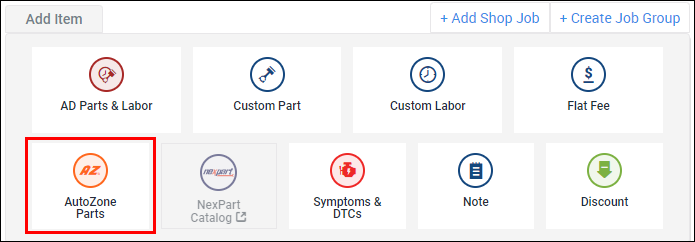
- Select AZ parts from the add item ribbon.
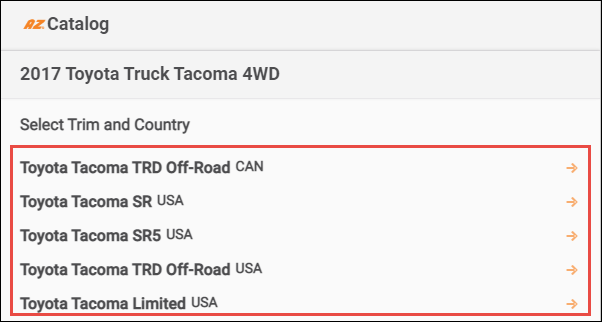
- Verify any additional vehicle specifics as required.
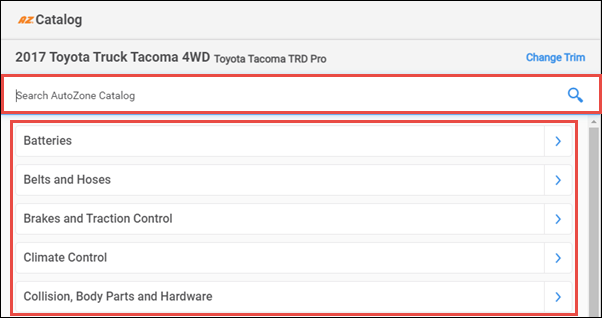
- Search or navigate the list to locate the part you want to add to the document.
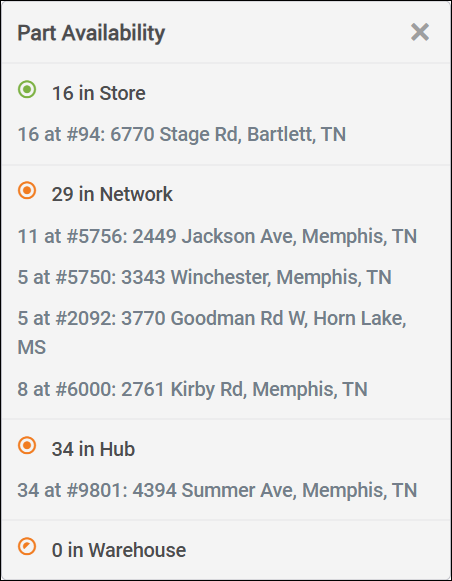
- Click See More to view full availability information for a specific part in your area.

- When deals are available, click View Details to view the conditions of the discount.

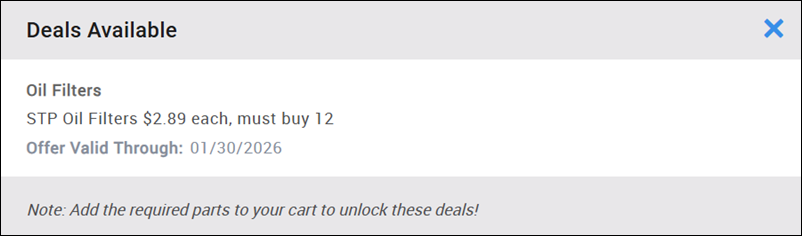
- Select a Quantity >> click Add >> Apply.

Check local product availability from the document view
- From the Document screen, click Check Availability to view full availability information for a specific part in your area.


Order parts
- If you haven't already, save the document as an Estimate or Repair Order to enable parts ordering
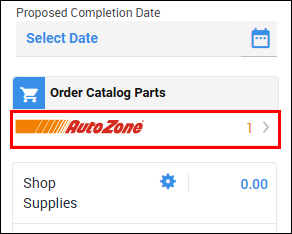
- Click Order Parts.
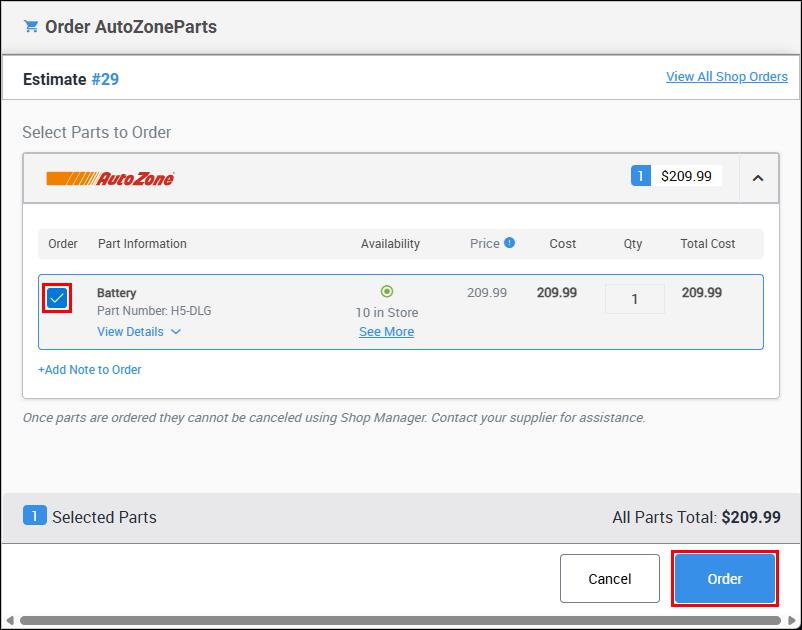
Select the parts you want to order >> click Order.
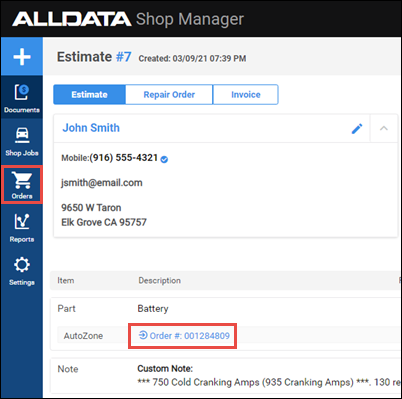
- The order number will now display on the line item.
Receive the parts order
Click the Order # on the line for an ordered part.
- Or click Orders from the left navigation menu and search for the parts order you wants to receive.
- Click Receive Order.