


Deferred Work
NOTE - Some features and functions in this article are only accessible at certain Shop Manager subscription levels.
| Feature / Function | Shop Manager Pro | Shop Manager | Estimator |
|---|---|---|---|
Defer Declined Jobs |  |  | |
Use Deferred Work to keep track of suggested jobs declined by the customer.
Defer Work
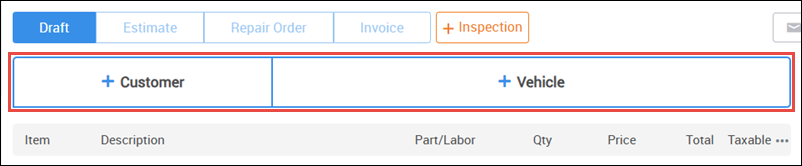
- Add a Customer and Vehicle to a document.
- Create a new job or add an existing shop job.
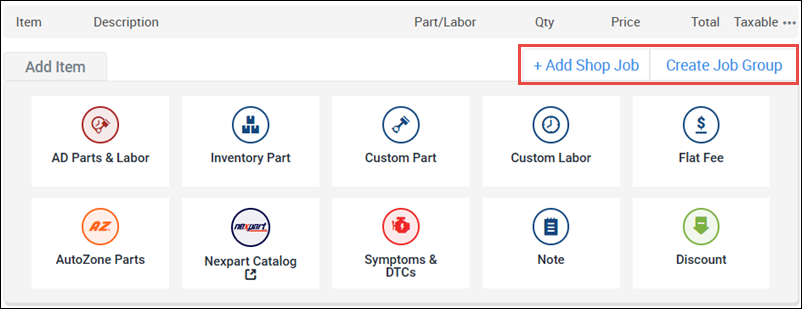
- Add any necessary items to complete the job.

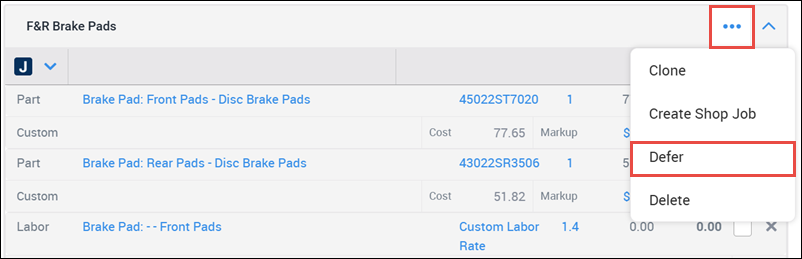
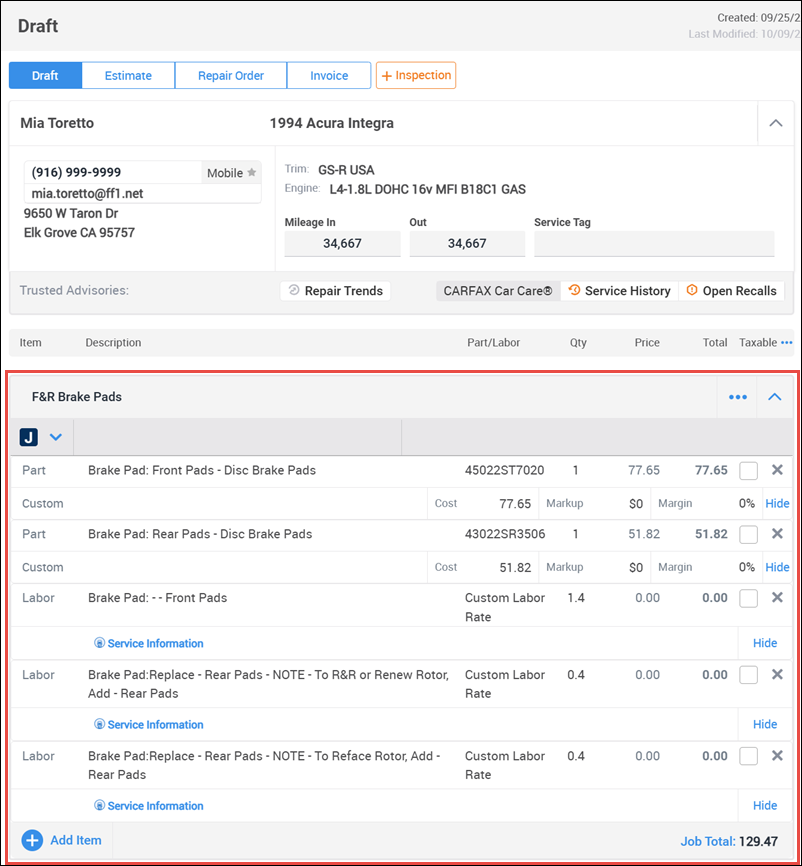
- Click the menu button (three dots) on the right side of the job header then click Defer.
- Select a Service Writer and Reason Deferred, then enter any additional notes that might be helpful to you when when reviewing the job at a later date.
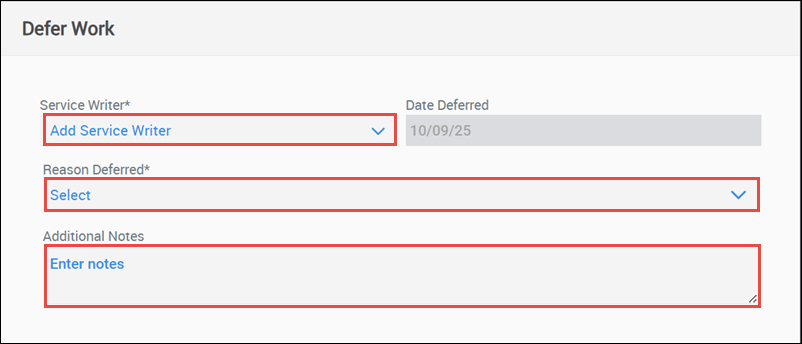
- Click Defer.
Add Deferred Work to a Document
- Add a Customer and Vehicle to a document.
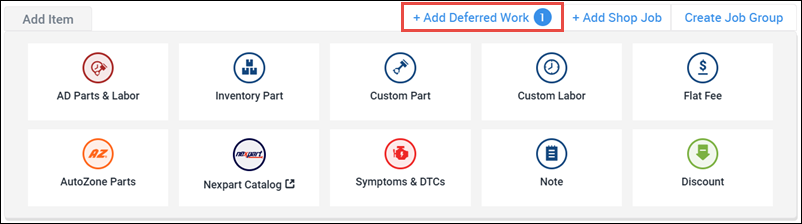
- Click + Add Deferred Work.
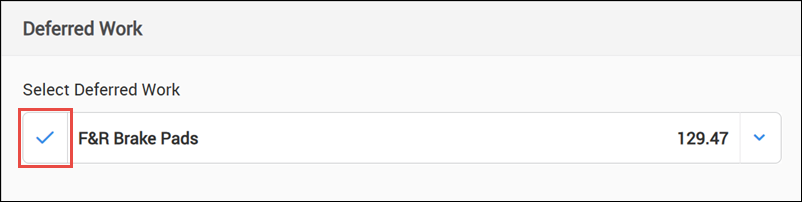
- Review the available deferred jobs and select the checkmark for the jobs you want to add to the document.
- Click Apply.
- The selected jobs will be removed from the Deferred Jobs list and added to the document.
View Outstanding Deferred Work
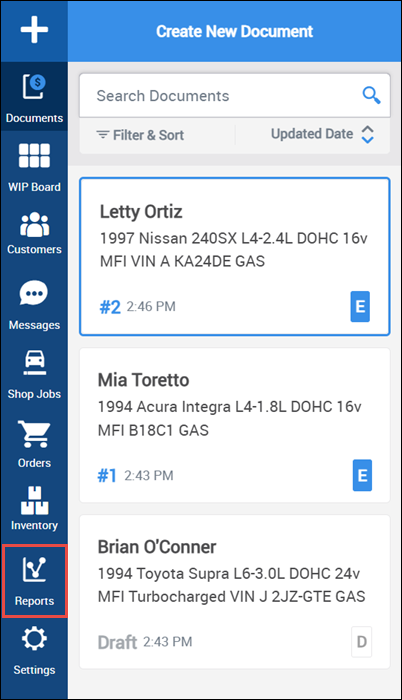
- In the left navigation menu, select Reports.
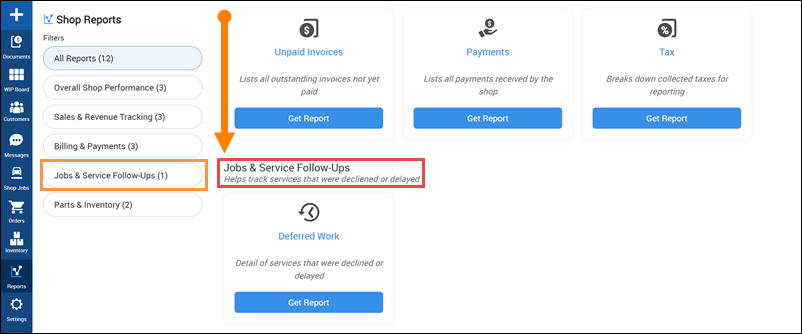
- Click the Filter, or scroll down to the Jobs and Service Follow Ups section.
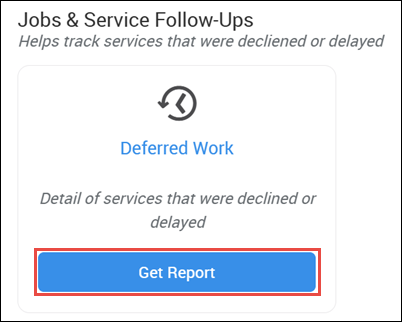
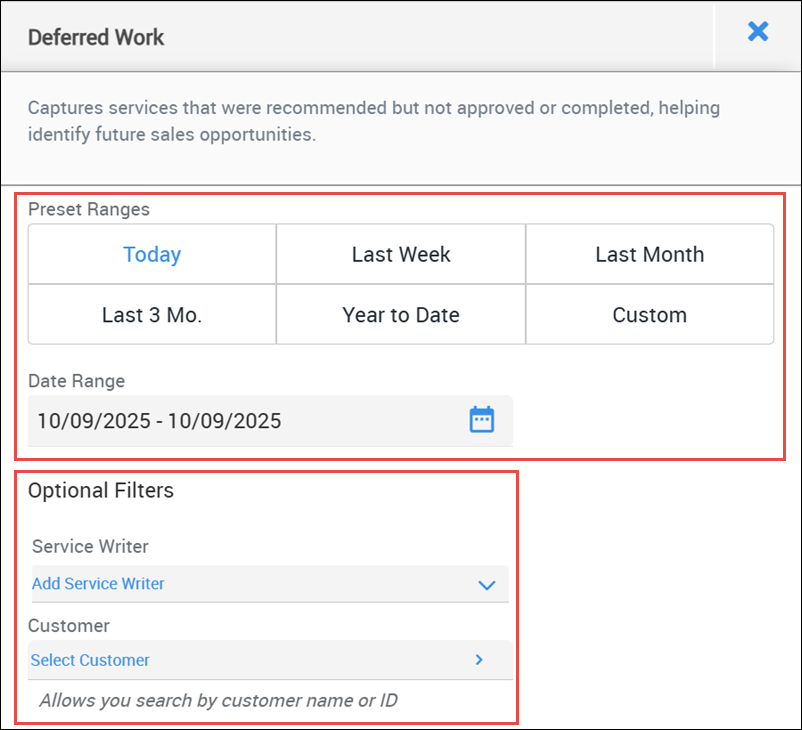
- Click Get Report under Deferred Work.
- Select a Date Range and choose any Optional Filters.
- Click one of the following:
- Download CSV - a .csv file will be downloaded to be viewed or manipulated by your spreadsheet software.
Print - A .pdf file will be saved to provide an easily print-friendly layout.
- The location of the downloaded files will be determined by your browser settings.
