


Attaching and Downloading Collision Repair Articles
ALLDATA Repair Planner keeps track of all Collision repair articles viewed while navigating Repair Planner and also allows you to manually attach relevant repair procedures, OEM recommendations, specifications and other documents to your estimates. These can then be referred back to as bookmarks, printed, or bundled together and downloaded as a conveniently packaged PDF document.
Manually Attaching a Repair Article
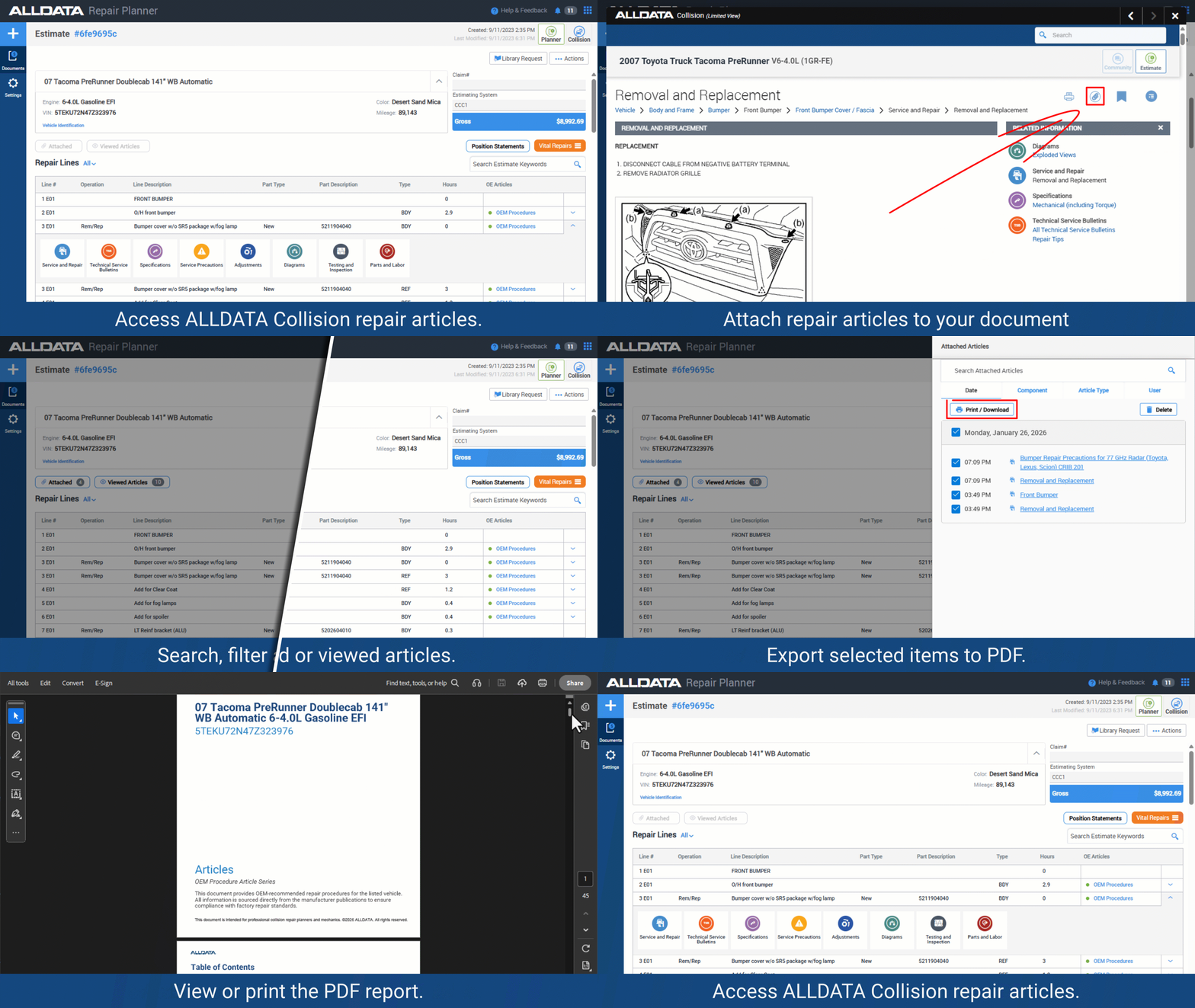
- From an imported Repair Planner document, access a Collision repair article from the Vital Repairs menu or from either the OEM Alerts or OEM Procedures area of a line item.
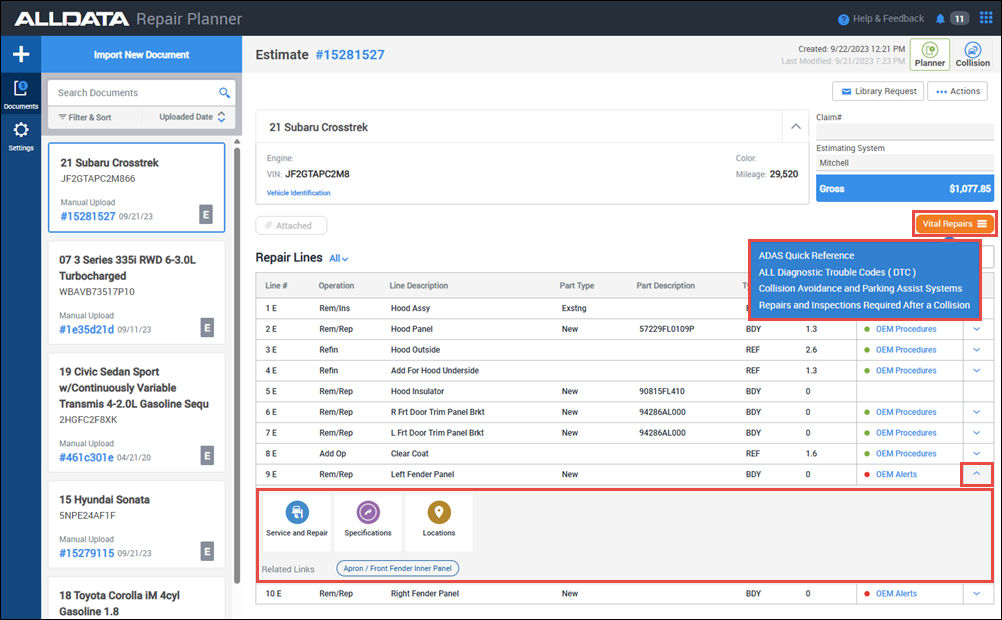
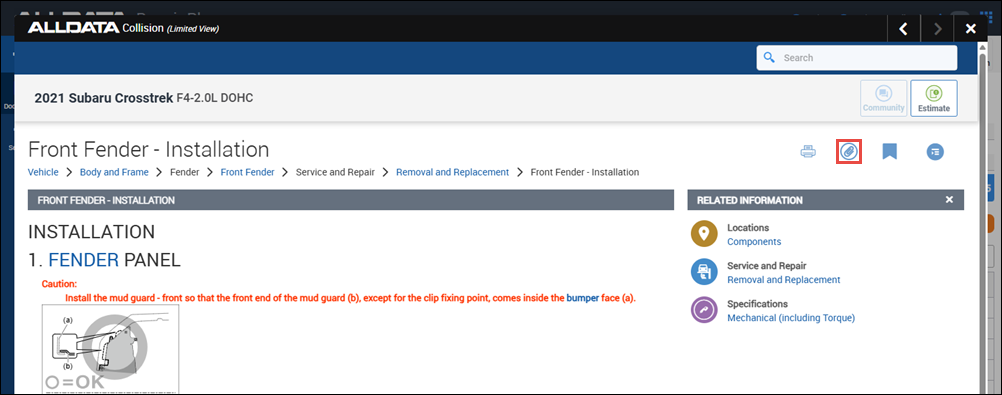
- In the Collision (Limited View) window, click the attach icon (paper clip) in the upper right corner.
Printing and Downloading Documents
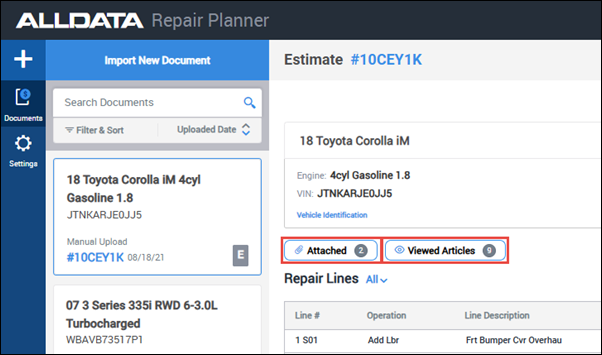
- From the Document screen, click either the Attached button to access the manually attached articles or the Viewed Articles button to access all articles that were viewed while navigating the imported document.
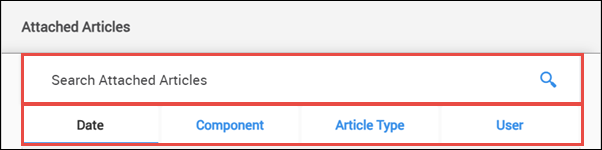
Navigate the attached articles by:
- Searching for a specific article with the the search bar.
- Using the tabs to group and sort the documents.
- Articles can be sorted by:
- Date
- Component
- Article Type
- User
- Articles can be sorted by:
- NOTE: You can click the text of the article to review the article contents in a popup window
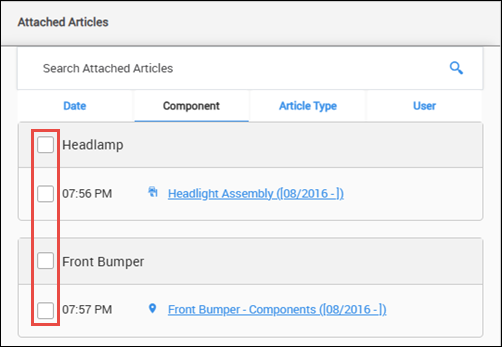
- Select groups or individual articles that you want to include in your print/download.
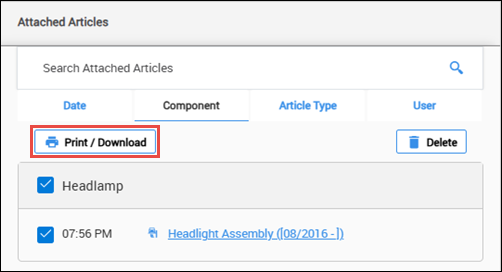
- Click Print/Download.
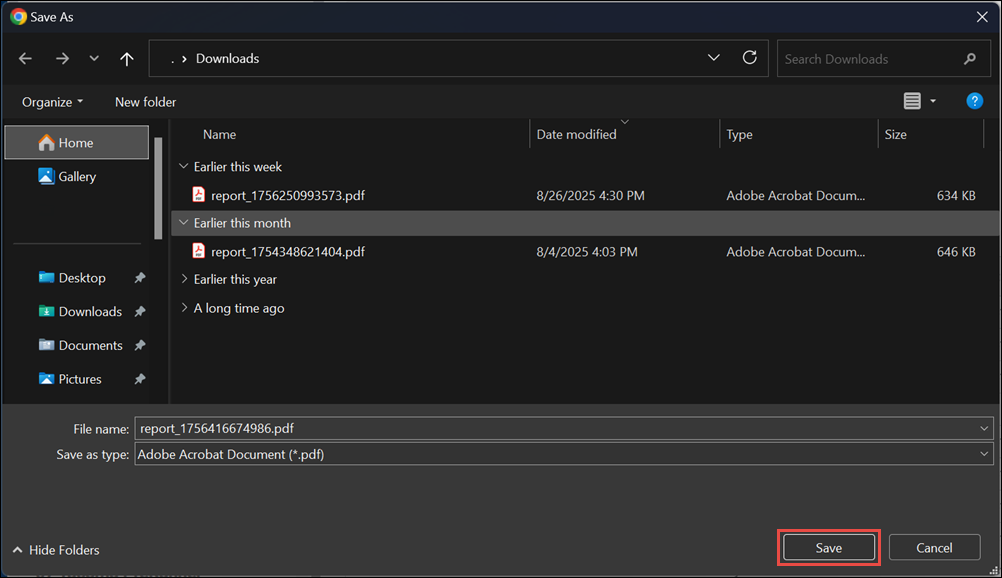
- Note: The following steps may vary based on your device's operating system and browser settings
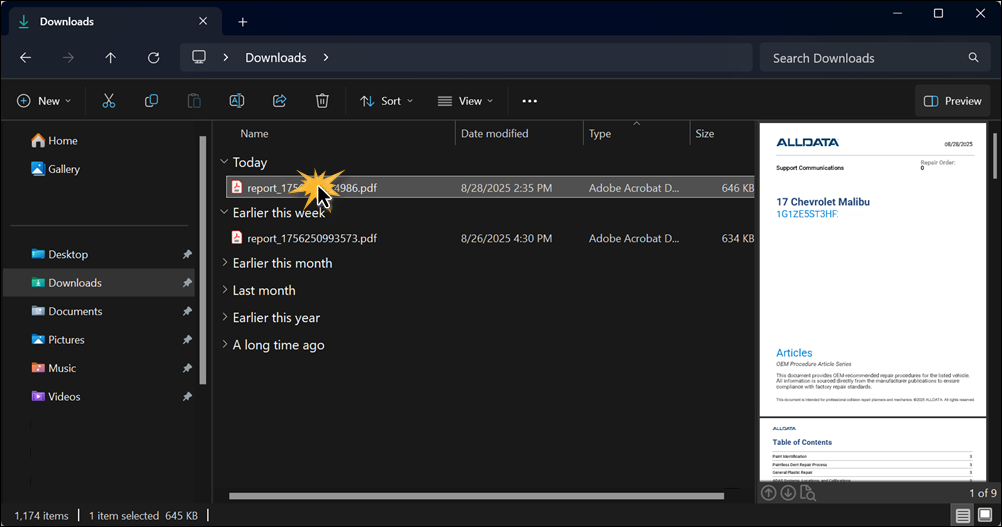
- Choose a location to save your exported document.
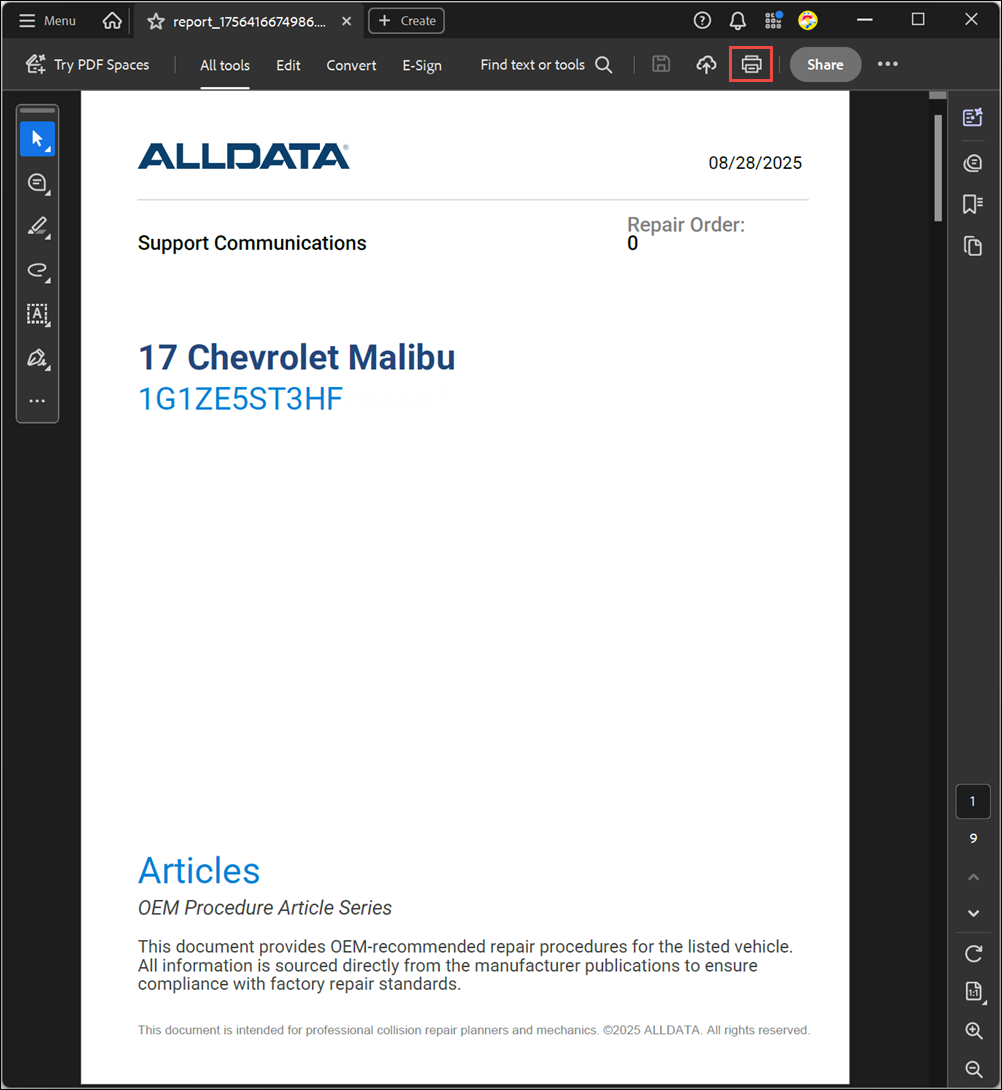
- Open the downloaded file.
- Select print.
- Choose a location to save your exported document.