


Shop Jobs
NOTE - Some features and functions in this article are only accessible at certain Shop Manager subscription levels.
| Feature / Function | Shop Manager Pro | Shop Manager | Estimator |
|---|---|---|---|
Shop Jobs |  | | |
Inventory Parts | |  | |
Shop Jobs allow you to prebuild generic jobs (grouped parts and labor information) that can be reused for multiple vehicles and quickly added to any estimate.
Create a new Shop Job
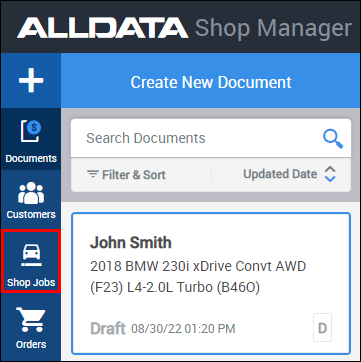
- Open the Shop Jobs tab from the side menu.
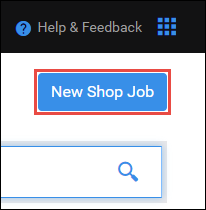
- Click New Shop Job.
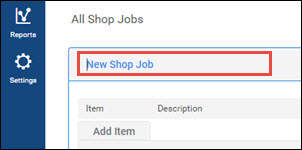
- Enter a name for the job.
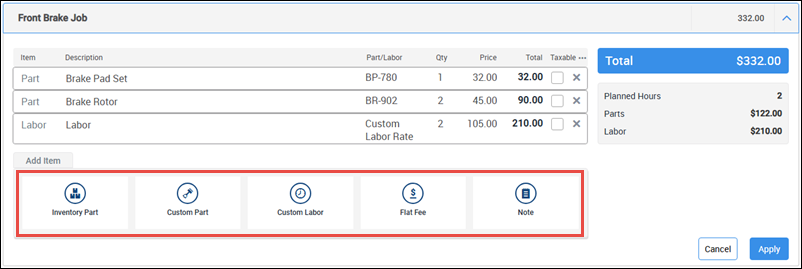
Select from the following options on the Add Item menu >> fill in any necessary fields >> click add:
- Inventory Part - Select a part from your inventory.
- NOTE - When using a Shop Job with included Inventory Parts, your inventory will automatically be adjusted.
- Custom Part – Enter a Description, Part No., Qty and Price.
- Custom Labor - Enter a Description, Rate, Qty and Price.
- Flat Fee – Enter a Description and Price.
- Note - Enter a Description for any of the following note types:
- Custom Note
- Customer Concern
- Work Performed
- Tech Note
- Tech Recommendation
- Inventory Part - Select a part from your inventory.
- Continue adding line items until the job is complete.
- Click Apply.
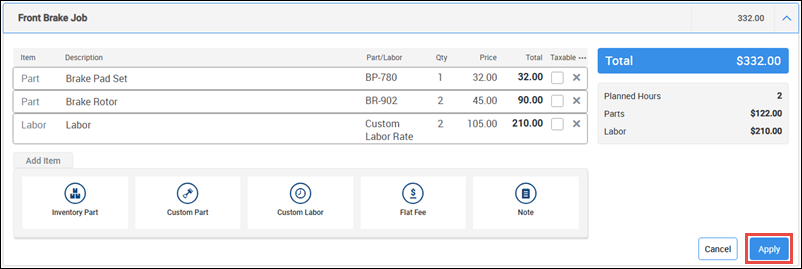
Note: ALLDATA Parts and Labor and parts from the AutoZone Catalog can be added to a document after a prebuilt shop job is added.
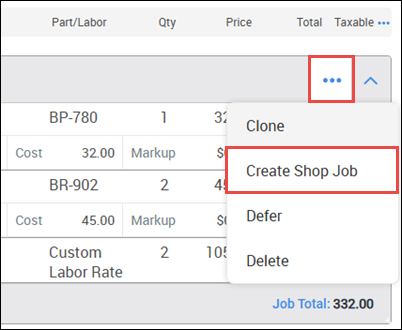
Save an existing Job Group as a Shop Job.
- From the Documents screen, select the more actions button (three dots) on the Job you want to save as a new Shop Job >> click Create Shop Job.
Edit existing Shop Jobs
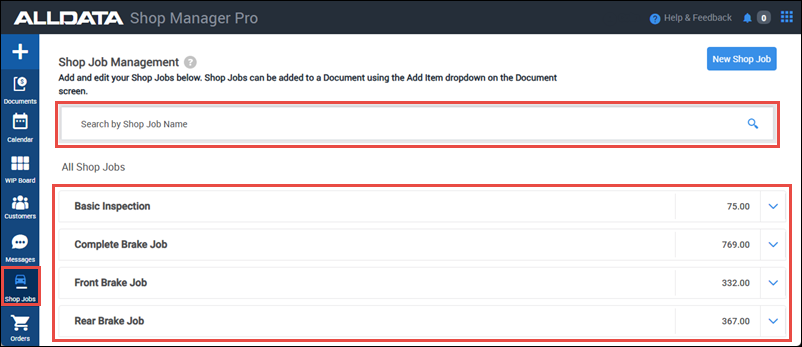
Locate the Shop Job:
- Open the Shop Jobs tab from the side menu.
- Search for the applicable job.
- Click the arrow at the right to show the items on the job.
Complete any of the following actions:
- Add Item to add another line item.
- X button to remove a line item.
- Remove to delete the entire shop job.
- Clone to make a copy of the job.
- Click any field to modify existing line items.
- NOTE - Inventory Part details cannot be modified.
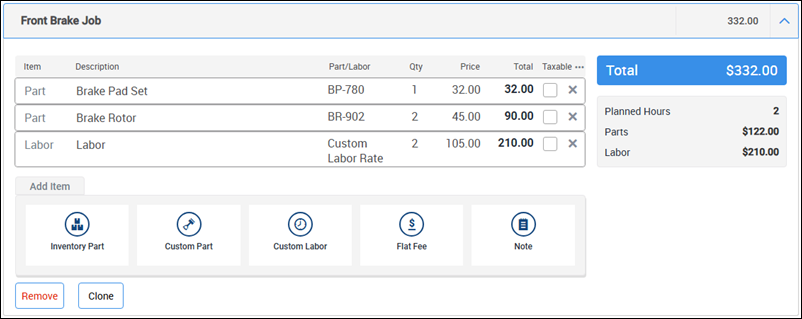
- Click Apply.
Add a Shop Job to a Document
- Select + Add Shop Job from above the Add Item menu.
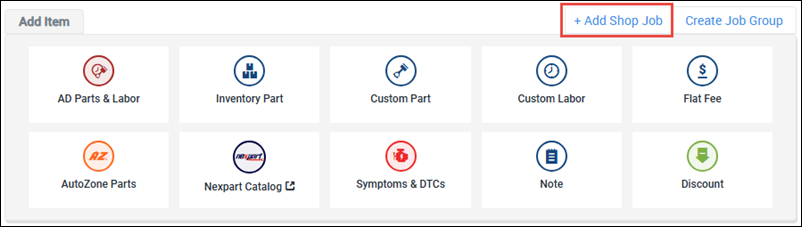
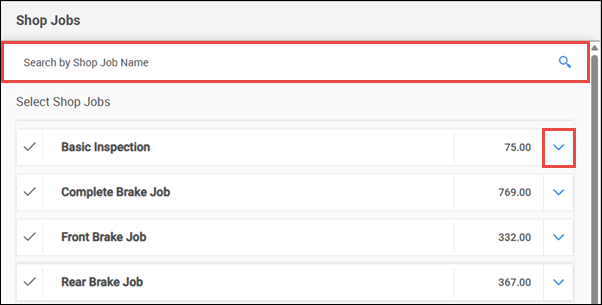
- Search for the name of the required shop job, then click the arrow next to any shop job to view the job's line items.
- Select any applicable shop job.
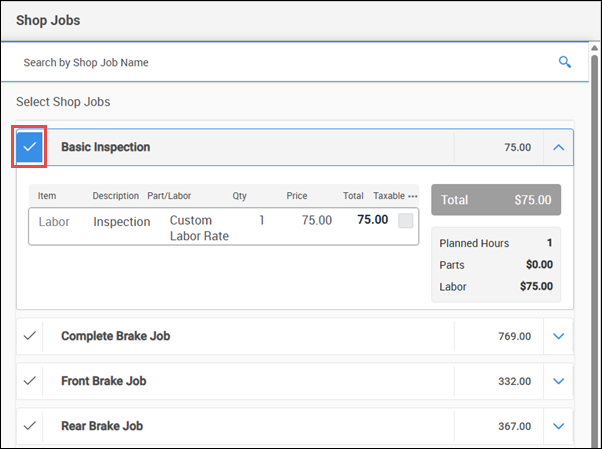
- Click Apply to add the selected jobs to the estimate.