


Enabling and Using CARFAX Car Care
Use CARFAX Car Care to:
- Decode the VIN (Vehicle Identification Number) from the license plate.
- View reported Service History by vehicle.
- Report completed services to CARFAX so that customers have a record of work performed.
Enabling CARFAX Car Care
- Click Setup >> User Options >> Carfax Car Care.
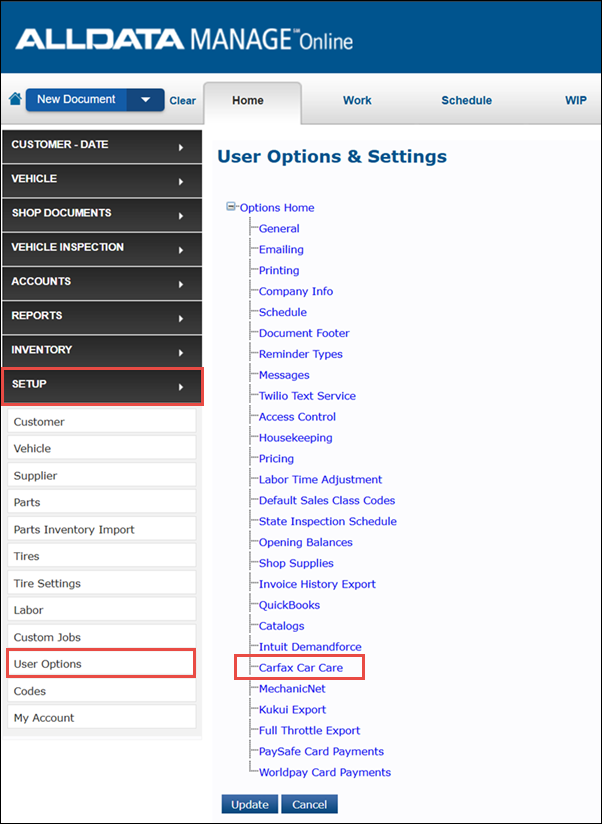
- Click the Enable Carfax Car Care and Enable Customer Enrollment check boxes >> verify and enter the required information fields >> click Save.
If your shop name contains special characters (ex: & ' - #), you will need to contact CARFAX support for assistance with integrating CARFAX Care Care and Manage Online.
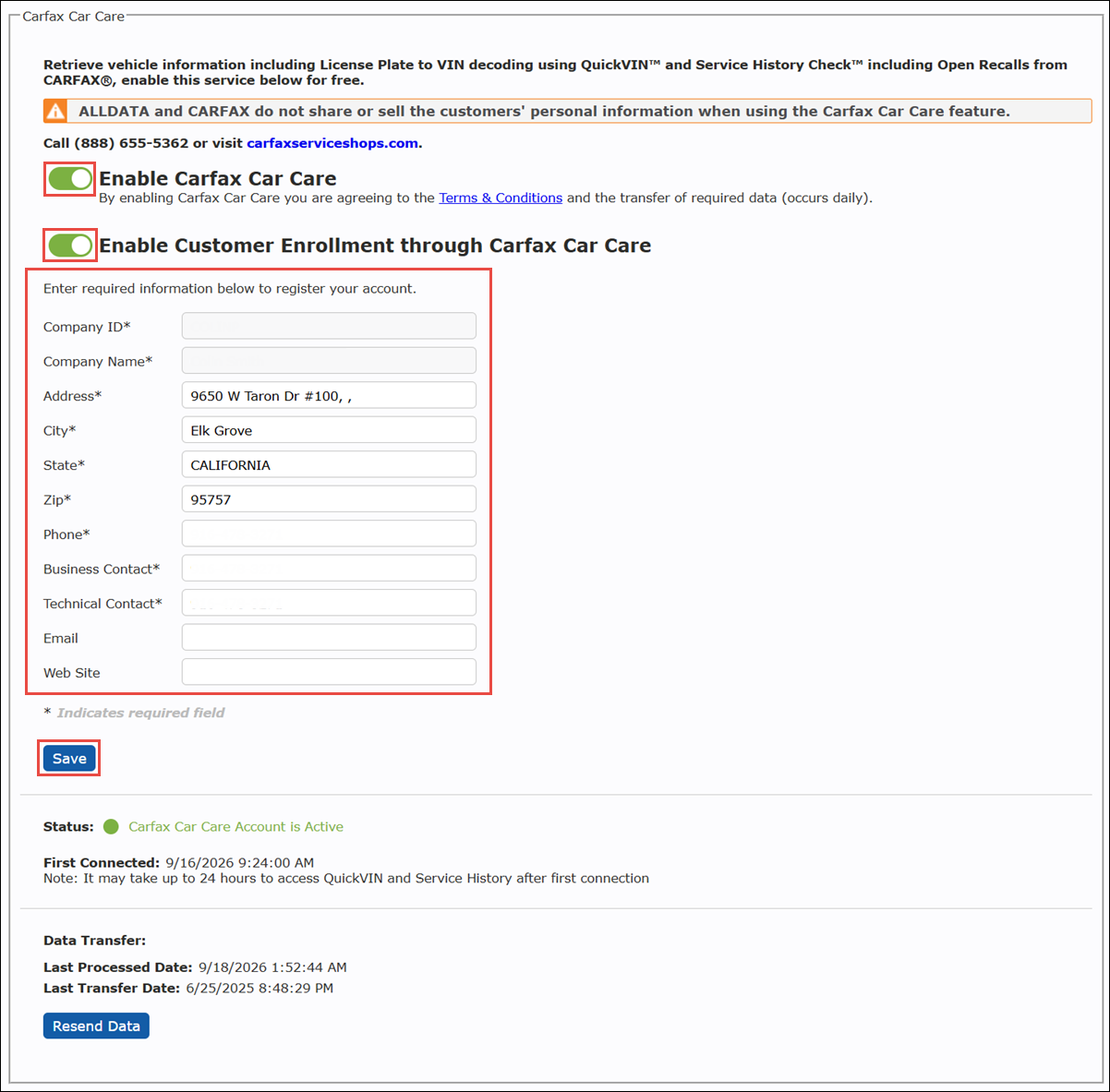
- ALLDATA Manage Online is now connected to CARFAX.
- Notes:
- It may take up to 24 hours before you will be able to access CARFAX
- Once connected to CARFAX, up to the past two years of invoice data will be sent to CARFAX.
- This does not include information that was converted from previous shop management systems.
- Notes:
Viewing Service History - From the Work Document
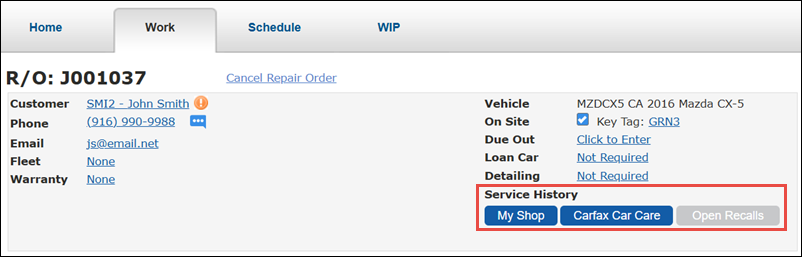
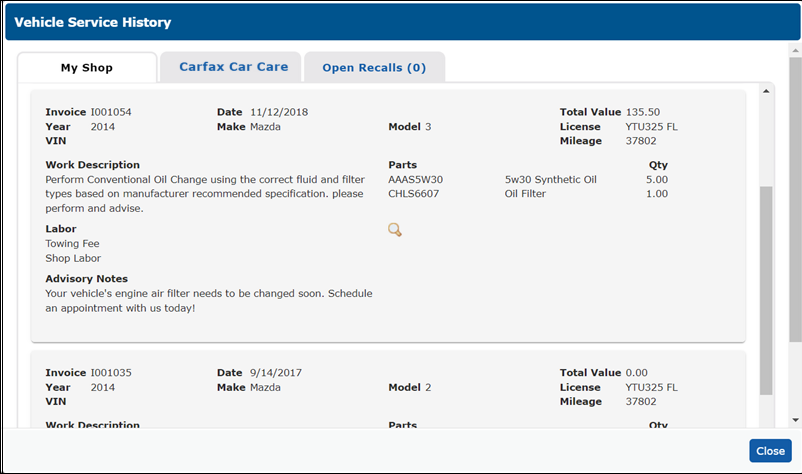
My Shop
Vehicle history from Manage Online will appear here.
CARFAX Car Care
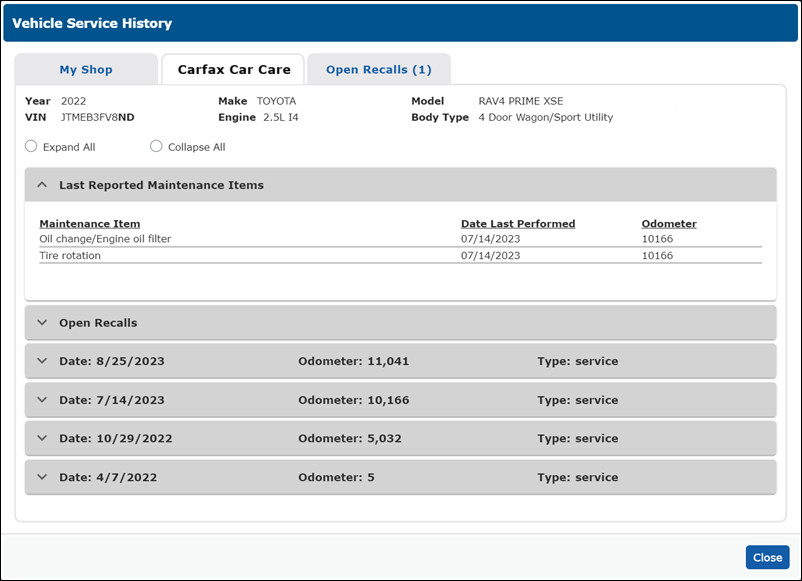
When a VIN has been entered for the vehicle, vehicle history that has been previously reported to CARFAX will appear here.
Open Recalls
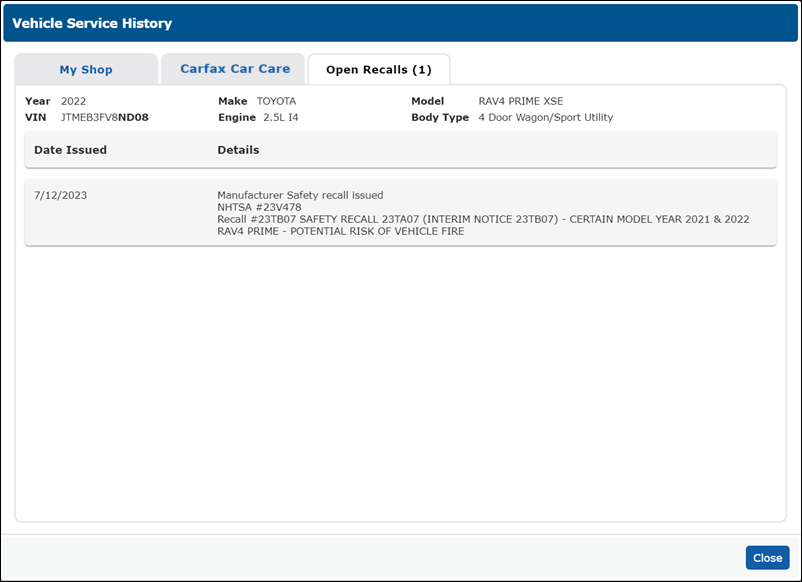
When a VIN has been entered for the vehicle, Open Recalls will appear here.
Using CARFAX Car Care - From the Vehicle Screen
Using QuickVIN™:
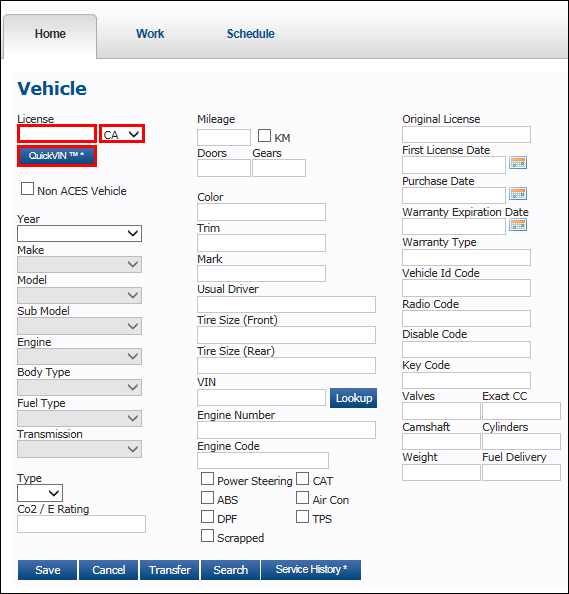
- Enter the License plate number >> select the state >> click QuickVIN™.
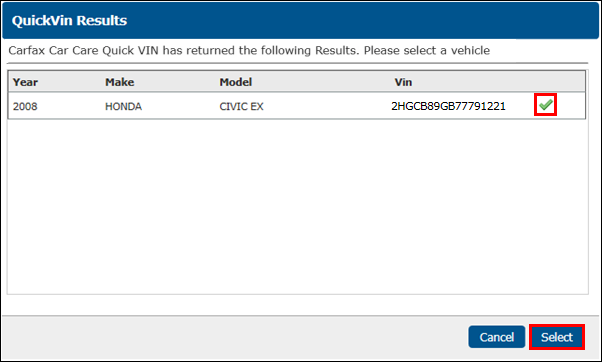
- In the QuickVin Results popup window, click the green check mark to select the vehicle >> click Select.
- Note: The VIN will now appear in the VIN field on the Vehicle screen.
- The letters in the VIN must be capitalized.
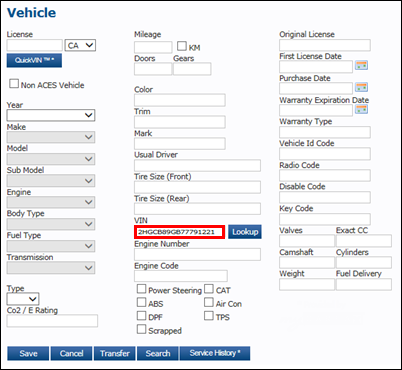
- In the VIN Decoder popup window, select United States or Canada >> click the green check mark to select the vehicle >> click Select.
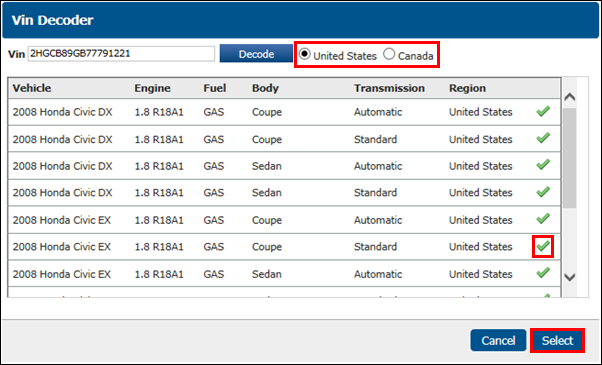
- The vehicle information and VIN will display.
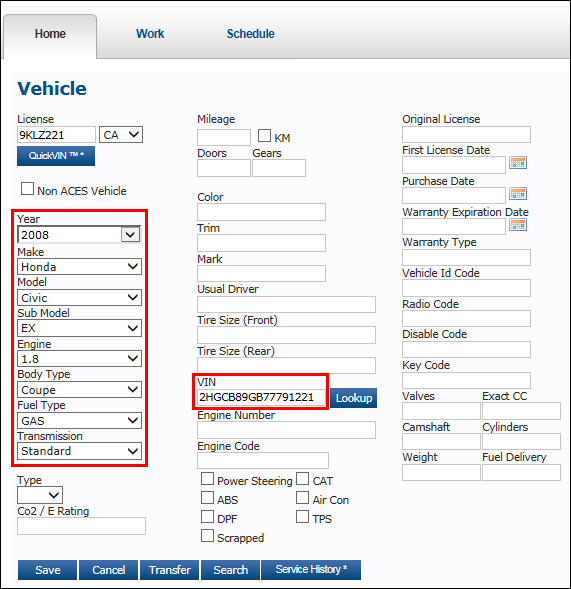
Viewing Service History:
- Once the VIN is displayed, click Service History.
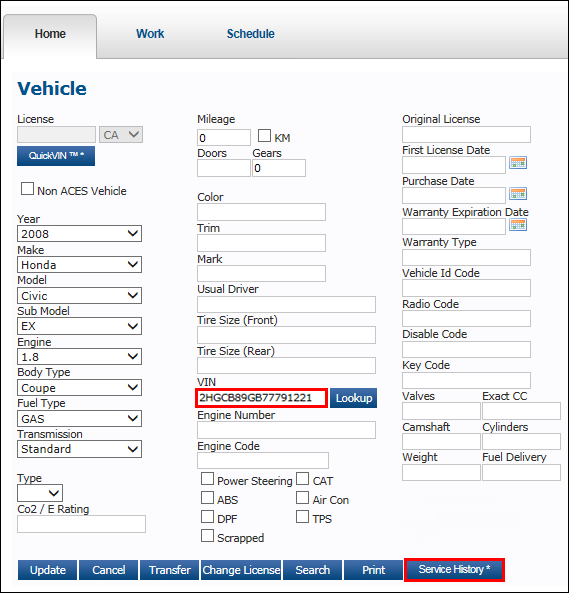
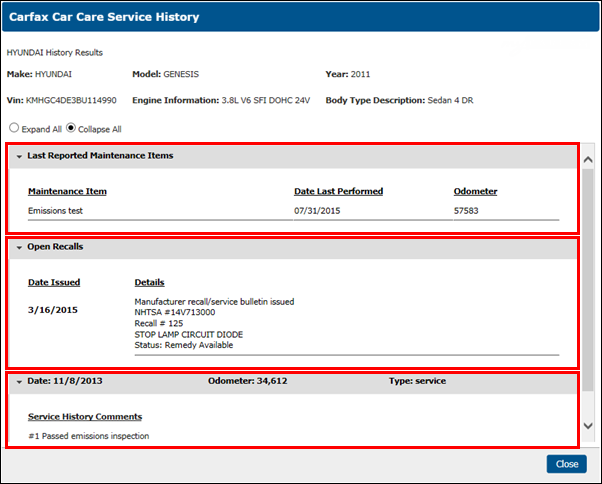
- The myCARFAX Service History will display.
- The Last Reported Maintenance Items section is a quick reference that shows the most recent common services that were performed, such as oil changes and tire rotations.
- This information is also available within the Service History Comments.
- The Open Recalls section show manufacturer safety recalls that have not yet been performed.
- Click each service history Date to view the Service History Comments, which include both common and specialized work performed.
- The Last Reported Maintenance Items section is a quick reference that shows the most recent common services that were performed, such as oil changes and tire rotations.
Note: See General Reports >> Work History to see an alternate method of viewing the CARFAX service history.
FAQs
What are the benefits of using CARFAX Car Care in my shop?
- QuickVIN™ - Look up the complete 17-digit VIN from a license plate number.
- Save time at customer check in and reduce errors ordering the wrong parts.
- Service History Check™ - Get access to exclusive CARFAX Service History information.
- Help increase ticket averages by making better service recommendations.
- Identify unperformed maintenance items.
- Inform your customers when they have an unfixed recall.
- CARFAX™ Car Care - Customers can track their service history with your shop and get maintenance reminders.
- CARFAX Service Alerts remind your customers to come back to your shop for oil changes and other services.
- Reach millions of vehicle owners with your free shop listing in the app (available for iOS, Android, and at www.carfax.com).
- Receive CARFAX™ point of purchase material.
- Customers gets credit on CARFAX Vehicle History Reports™ for taking care of their car.
What are the benefits to my customers?
- Encourage your customers to download the CARFAX Car Care app, where they can:
- Track their CARFAX Service History
- Receive service alerts and reminders
- Get credits for CARFAX Vehicle History Reports™ when taking care of their car.
How can I share the CARFAX Service History with my customers?
- Encourage your customers to download the CARFAX Car Care app, where they can receive all of the benefits, at no cost, available from CARFAX Car Care.
- Note: The CARFAX Service History cannot be printed from Manage Online.
What information is sent to CARFAX?
- CARFAX collects the:
- VIN
- Date of Service
- Odometer Reading
- Invoice Item Lines
- Example: Parts and Labor lines.
- CARFAX does not collect:
- Customer Information
- Cost of Services
- Contact service.carfax.com for more information.