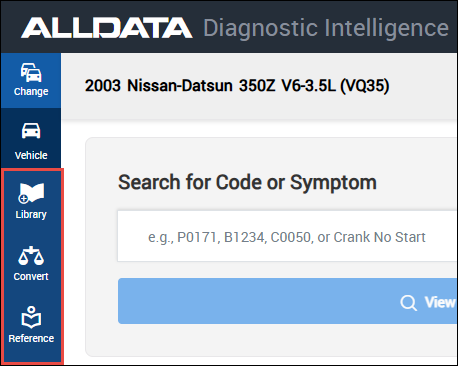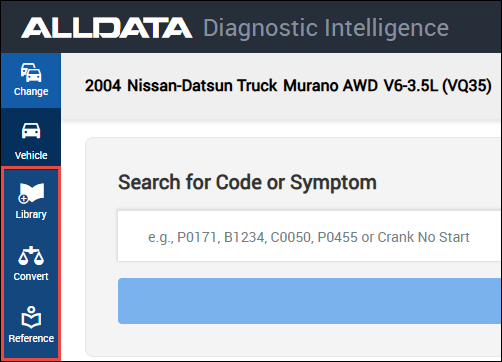


Using Diagnostic Intelligence
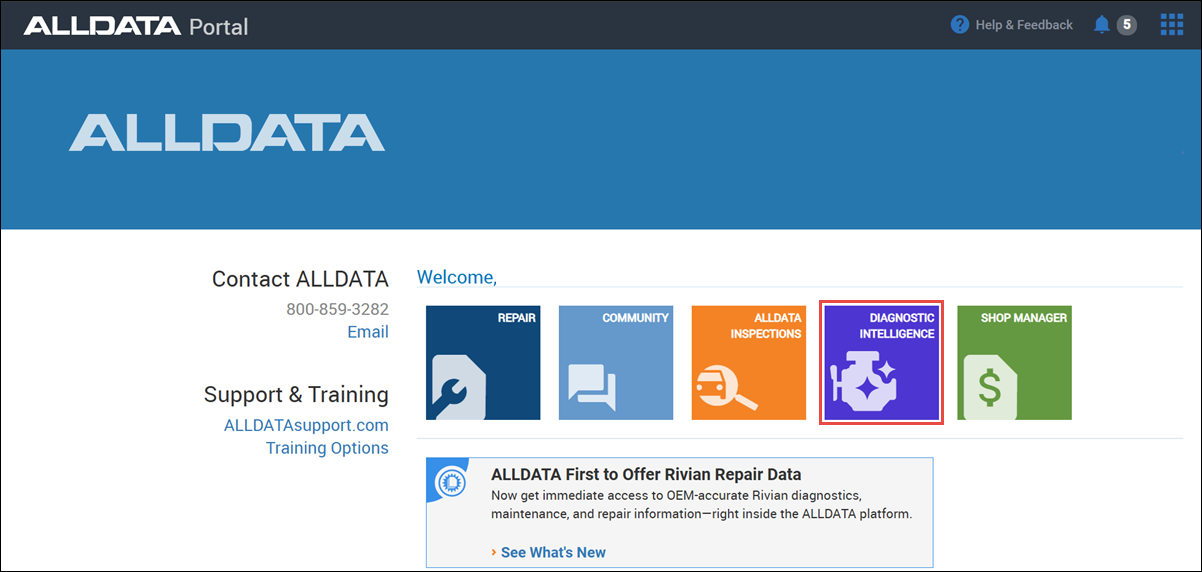
- Log into my.alldata.com and open the Diagnostic Intelligence app.
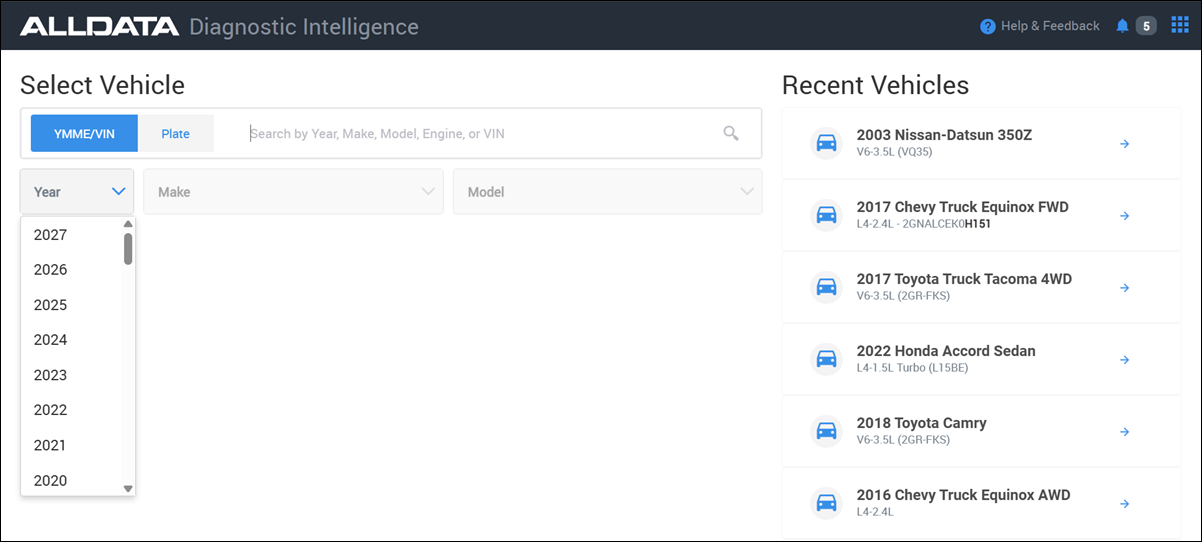
- Select a Vehicle.
- View common Diagnostic Resources available from ALLDATA Repair, for the selected vehicle, in the right hand menu.
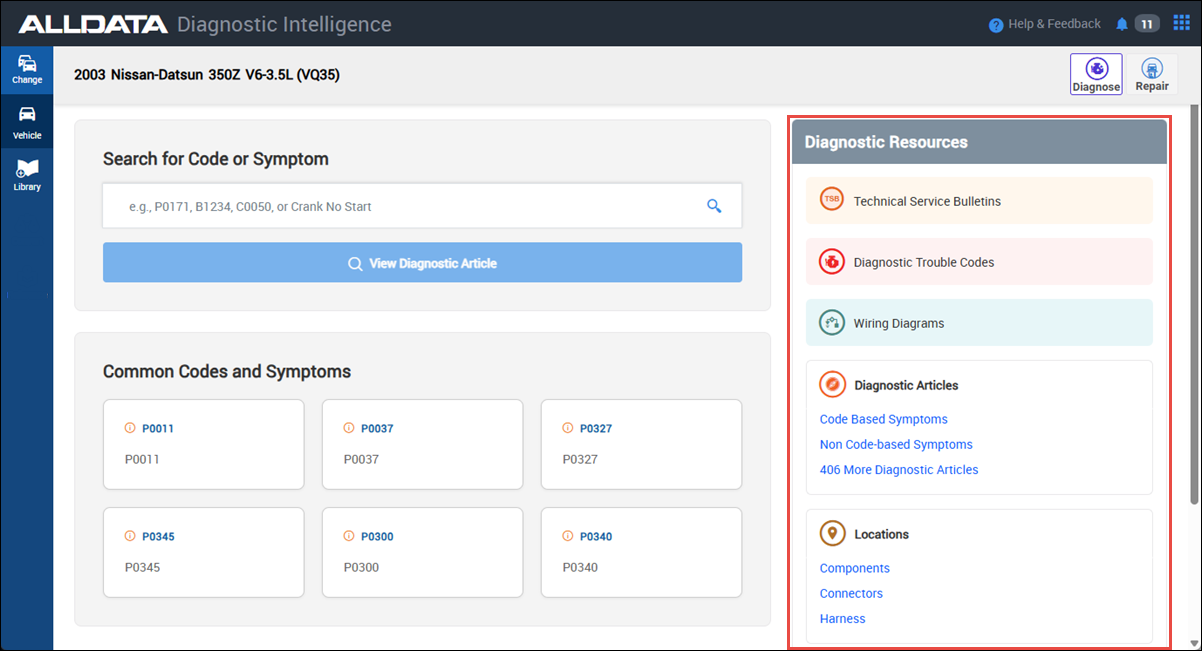
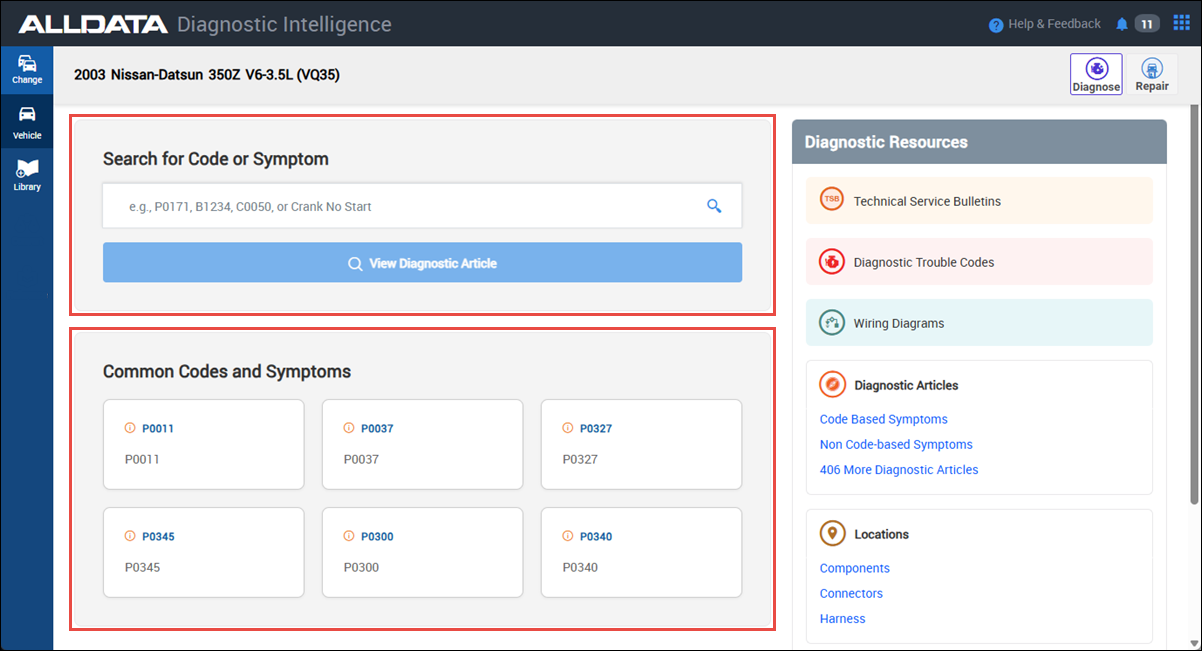
Select from the list of common Codes and Symptoms, or fill in the Search for Code or Symptom box and click View Diagnostic Article to find information for a specific diagnostic concern.
- Note: Multiple codes can be entered at once. AI guidance will take all codes into consideration when giving analysis.
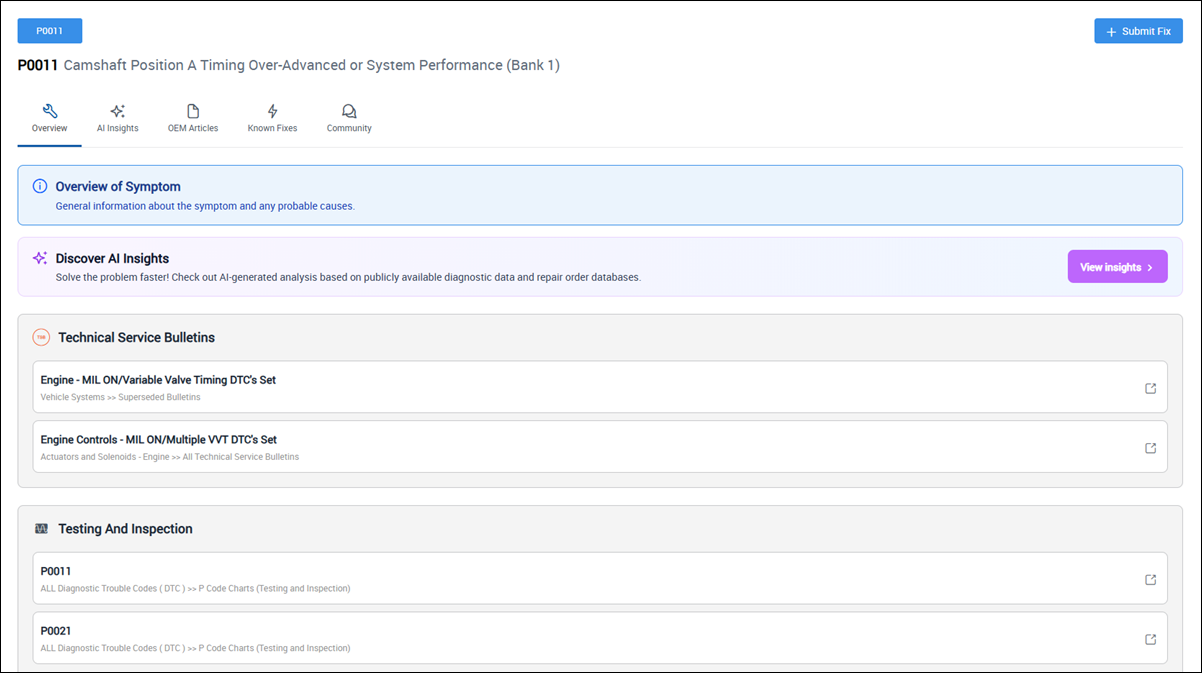
- View diagnostic information from any the following tabs:
Overview
DTC and symptom description, related TSBs, probable causes and other service information.
AI Insights
Available AI insights could include:
- Typical diagnostic time
- Skill level to test and diagnose
- Common diagnostic mistakes to avoid
- Most likely root cause
- Recommended diagnostic approach
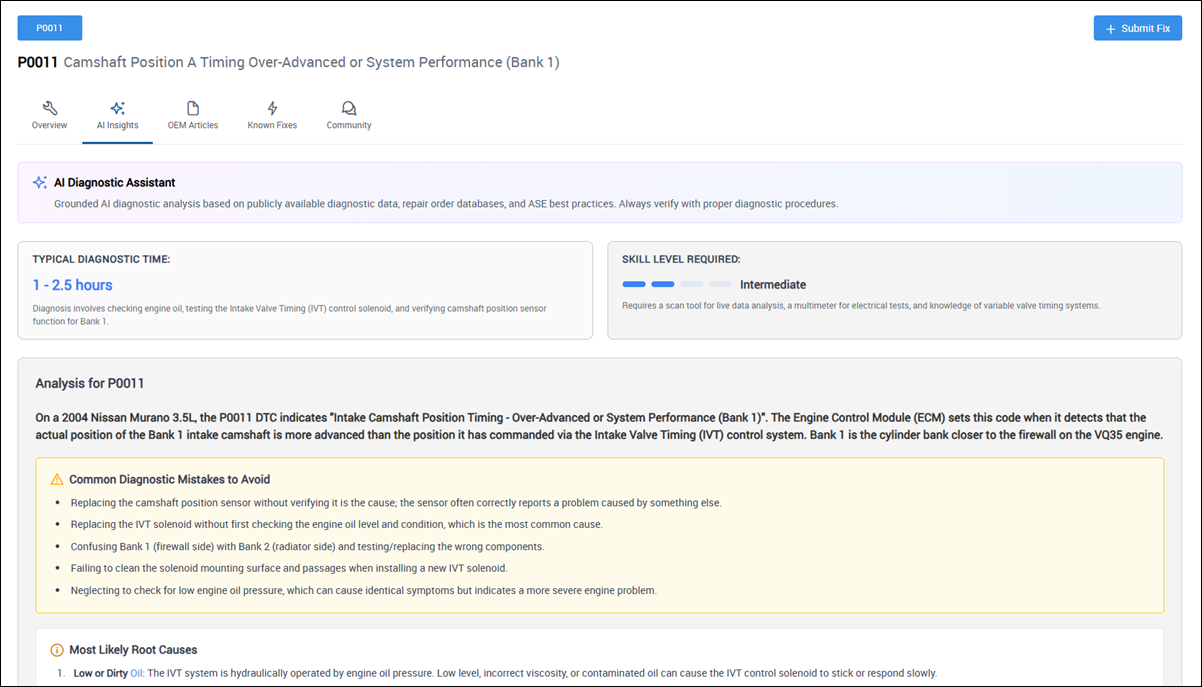
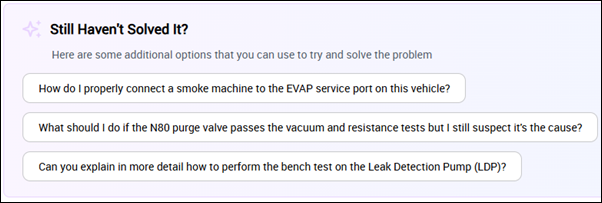
Dive deeper into AI powered diagnosis by selecting a follow-up question.
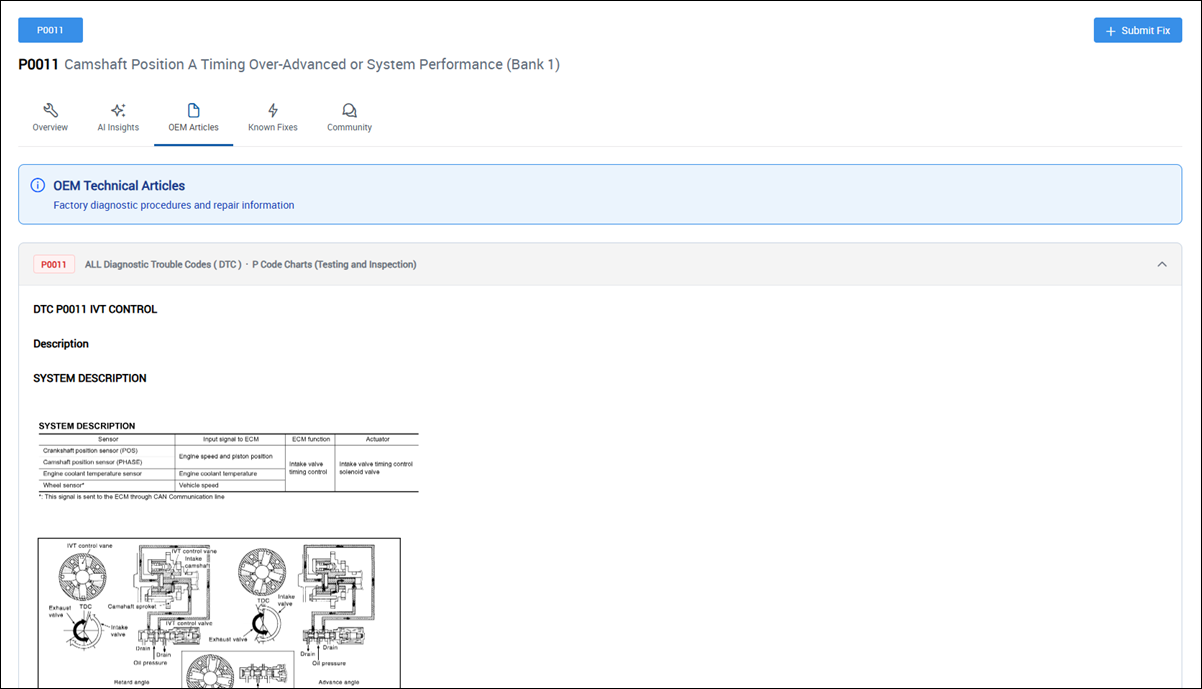
OEM Articles
OEM provided diagnostic instructions that could include:
- Fault conditions
- Component descriptions
- Circuit and component testing
- Clearing instructions
- Diagnostic aids
- and more...
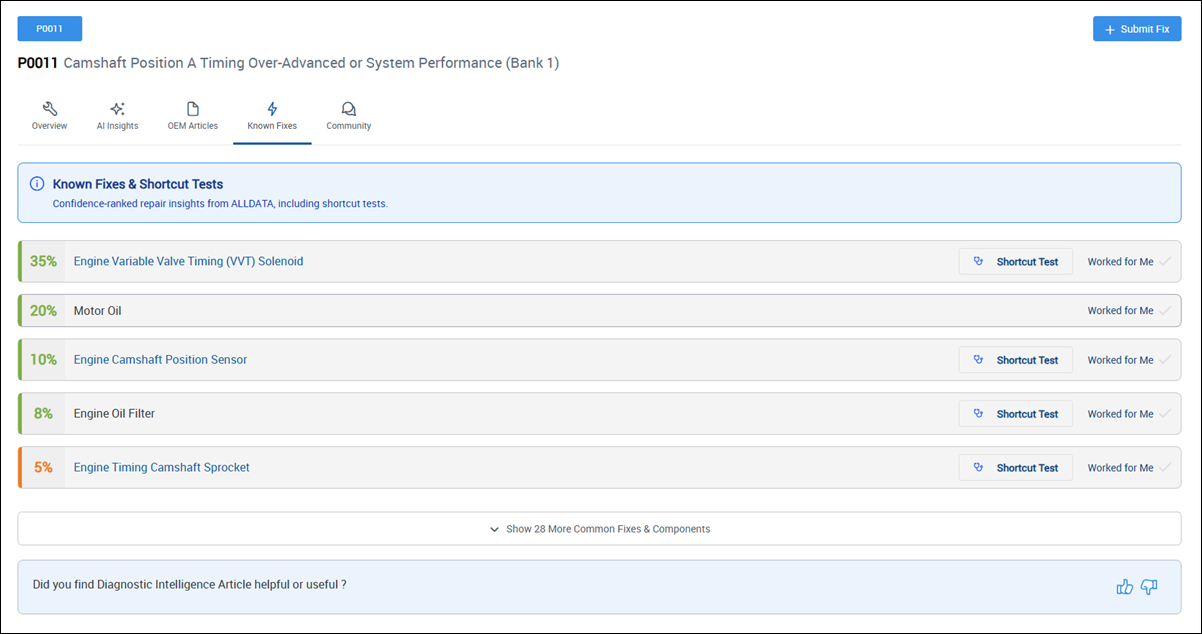
Known Fixes
Quick reference to confidence-ranked repairs and common testing procedures.
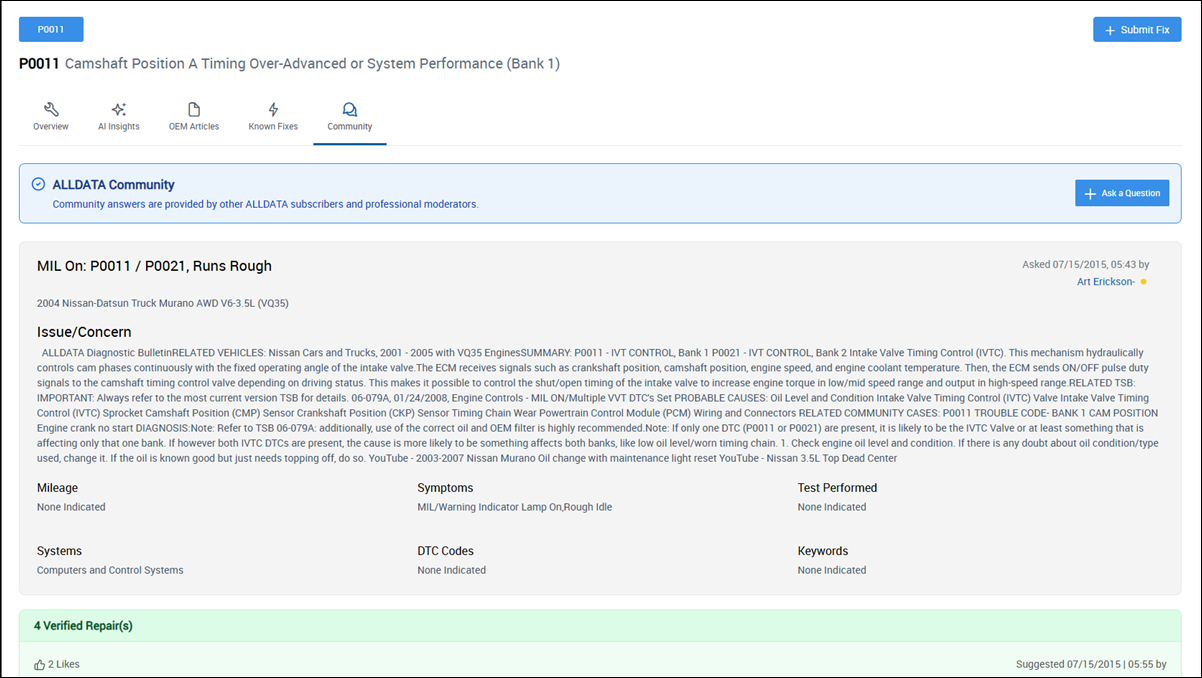
Community
Community sourced answers for hard-to-diagnose problems from over 300,000 ALLDATA techs and ALLDATA's Automotive Diagnostic Team.
Additional Resources
- Library - Don’t see the OEM info you need? Need to verify a repair procedure or specification? Submit a Library Request and get a response FAST – usually in 30 minutes or less.
- Convert - Complete all your unit conversions with one simple tool.
- Reference - Access ALLDATAs' Quick Reference guides.