

Appointments Calendar
NOTE - Some features and functions in this article are only accessible at certain Shop Manager subscription levels.
| Feature / Function | Shop Manager Pro | Shop Manager | Estimator |
|---|---|---|---|
Appointments Calendar |  |  | |
Add Customers to the Appointments Calendar to keep track of incoming work
Settings
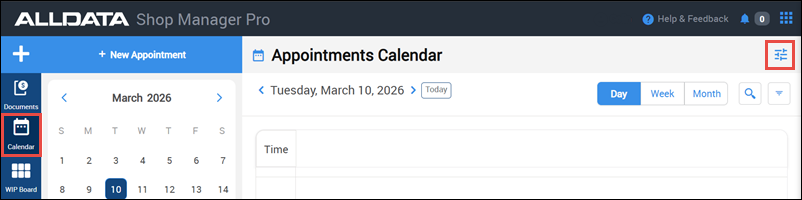
- Click Calendar >> Appointment Preferences.
Hours & Closures
Operating Hours
- Click the the toggle buttons to enable the days that your shop will be open and available to take appointments.
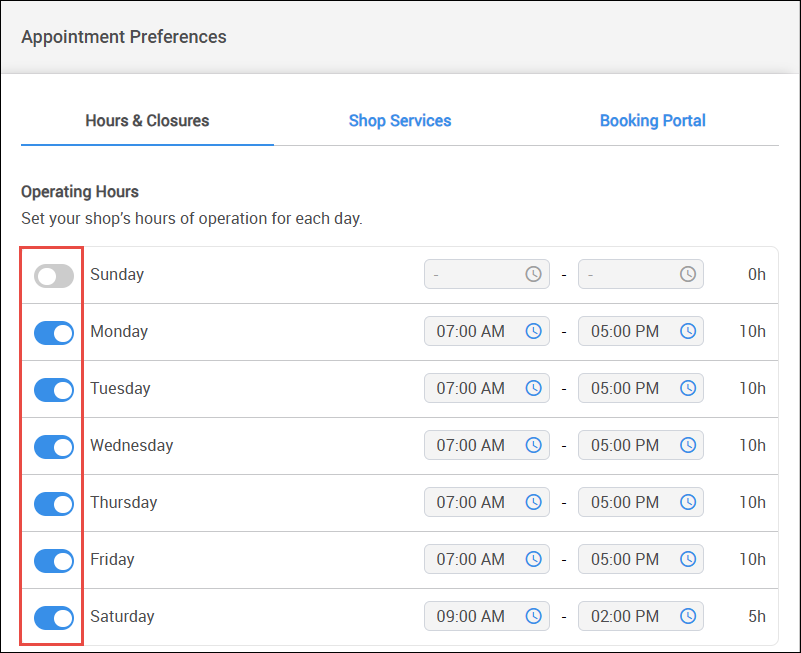
- Select the open and close times from the dropdowns for each day your shop will be open.
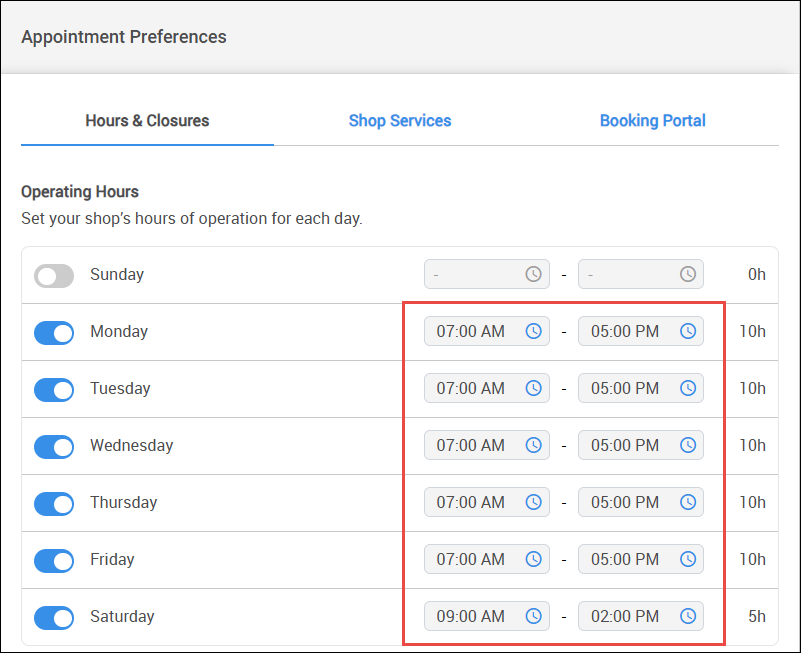
- Click Apply to save any changes.
Holidays & Shop Closures
- Click the toggle buttons to disable any preloaded federal holidays that you want to leave available for appointment bookings.
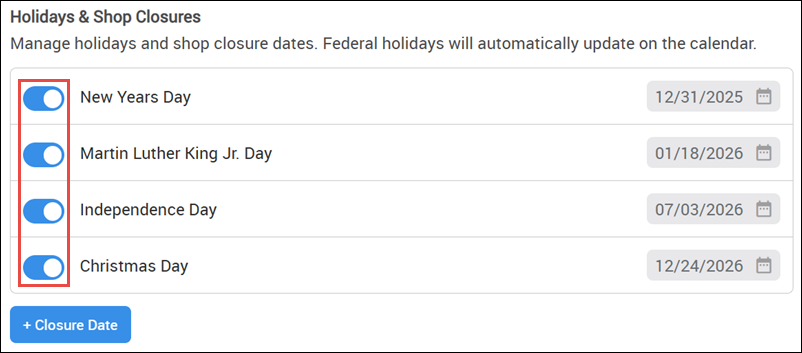
- Add Holidays or other Shop Closure days.
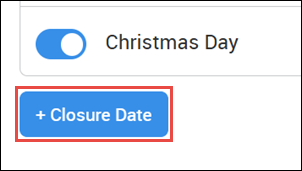
- Click +Closure Date.
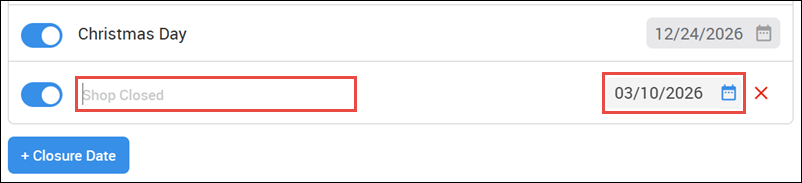
- Fill in a Description for the closure and select a Date.
- Click +Closure Date.
- Click Apply to save any changes.
Shop Services
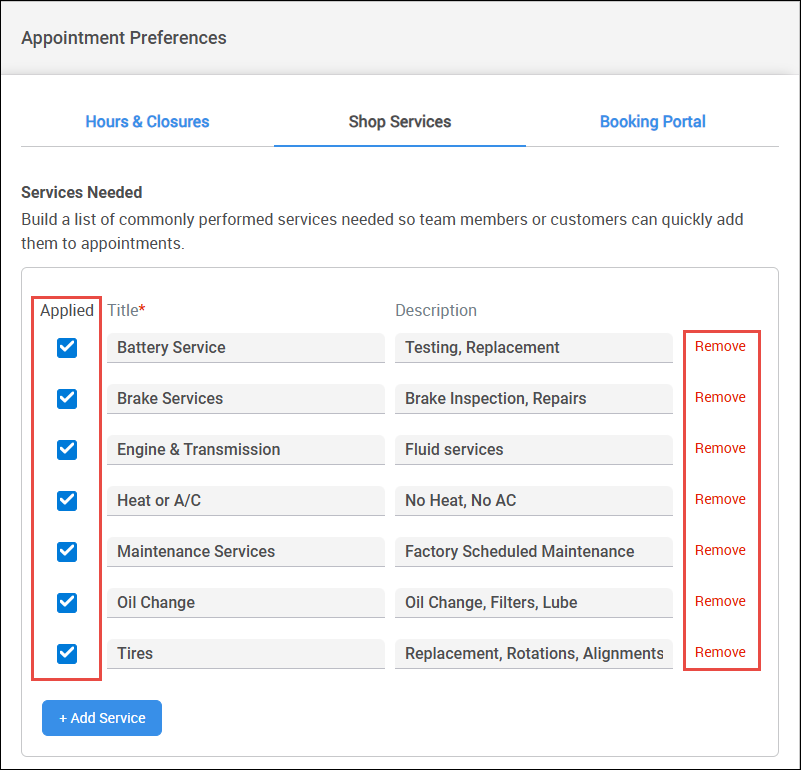
Services Needed
Remove unwanted services.
- Deselect check boxes to temporarily deactivate .
- Click Remove to permanently delete.
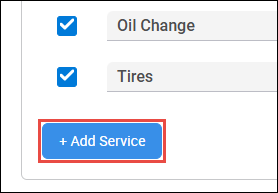
- Add services.
- Click +Service.
- Enter a Title and Description.
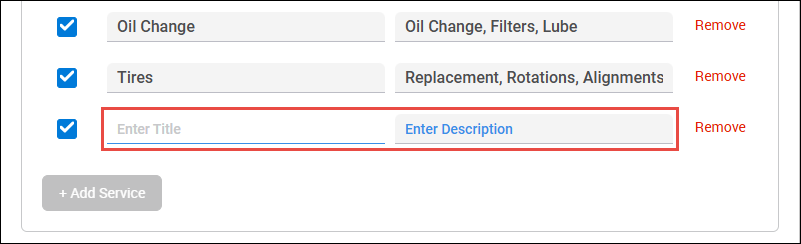
- Click +Service.
- Click Apply to save any changes.
Booking Portal
See the Appointments Calendar Booking Portal support article for more information about setting up and using the Booking Portal.
Create Appointments
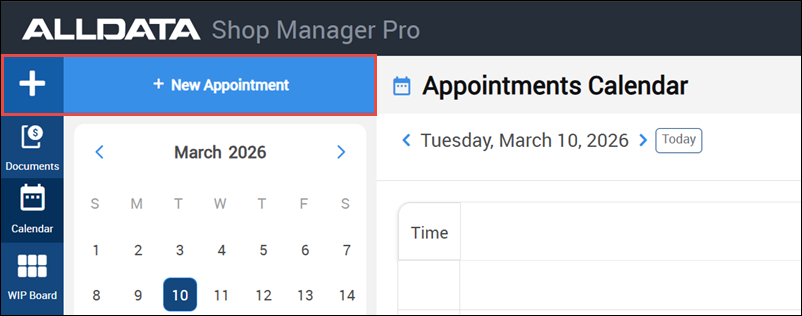
- Click +New Appointment or double click a time slot.
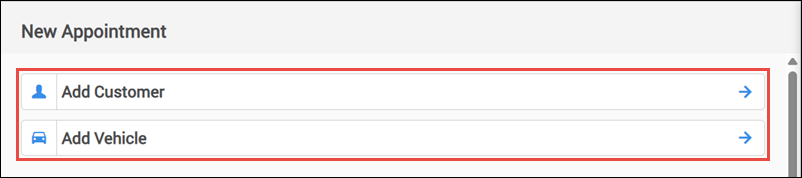
- Add a new or existing Customer and Vehicle.
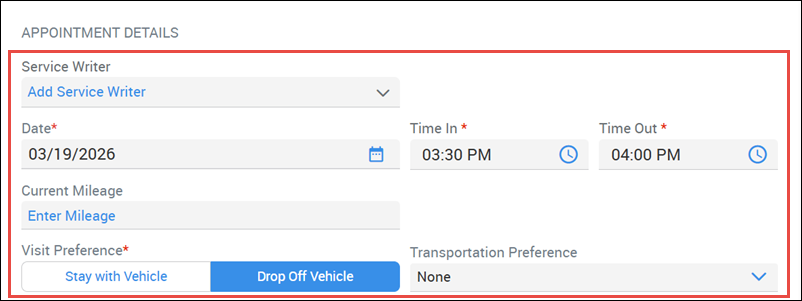
Make changes to Appointment Details as necessary.
- Add a Service Writer
- Adjust the Date and Time In /Time Out
- Adjust Current Mileage
- Set a Visit Preference and a Transportation Preference if vehicle is being dropped off
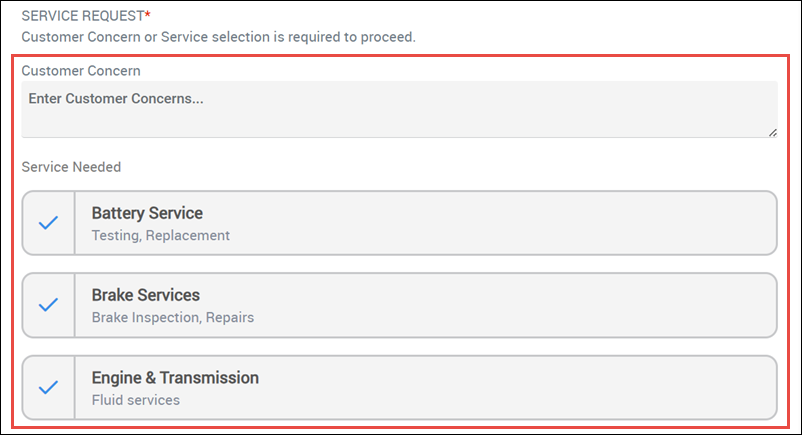
Add one or more of the following types of Service Requests:
- Customer Concern - Type in a description of the customer's issue.
- Service Needed - Select from a list of predefined services.
- Click Create Appointment.
Viewing the Calendar
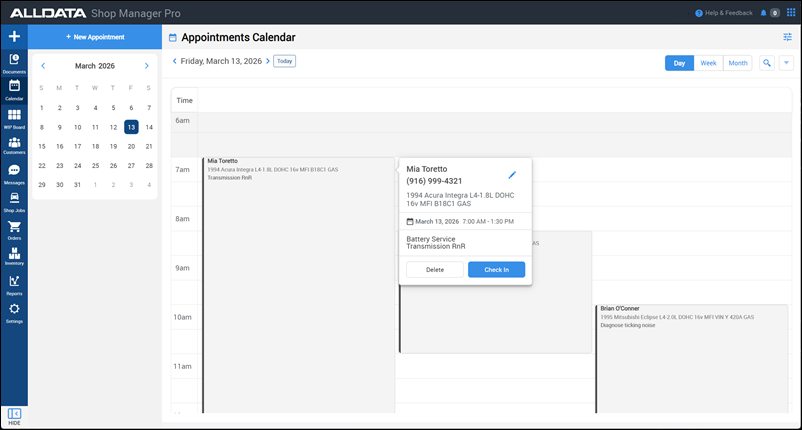
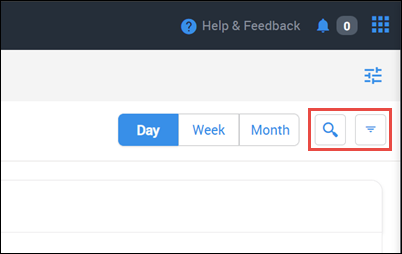
- Switch between Day, Week, and Month views.
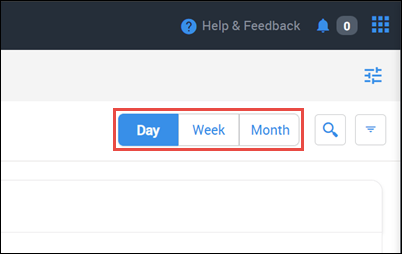
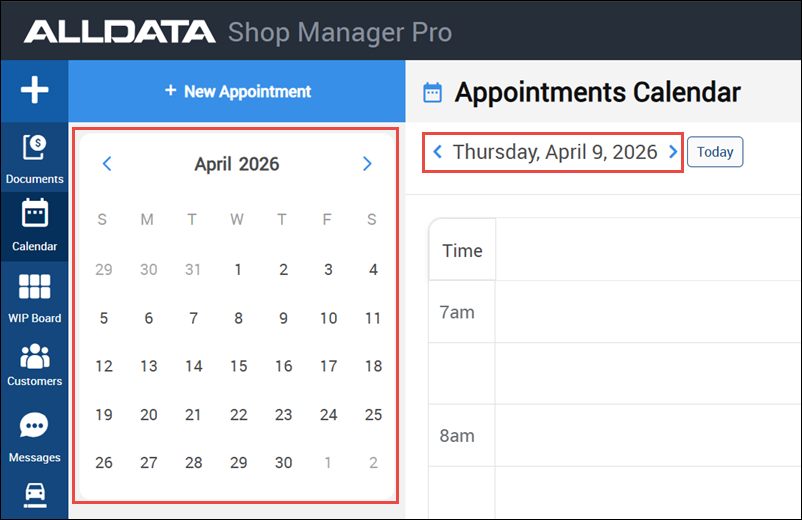
- Select a date or date range from the mini calendar, or move forward or backward by day, week or month, depending on what view is selected.
- Search or filter to easily find a specific appointment.
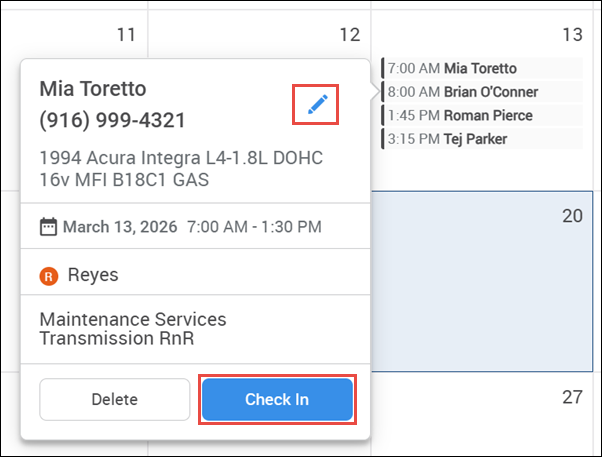
Click an appointment to view details, Edit, or Check In.
- Checking in will create a document draft with all the customer and appointment details included.