


General Reports
The Reports section contains general reports that analyze and track all customer, supplier, and technician activity.
- To learn more about using the Customer Relationship Man., see Sending Messages to Customers.
- For additional reporting options, see Overview of Reports.
To find Reports:
Click Reports >> select a report.
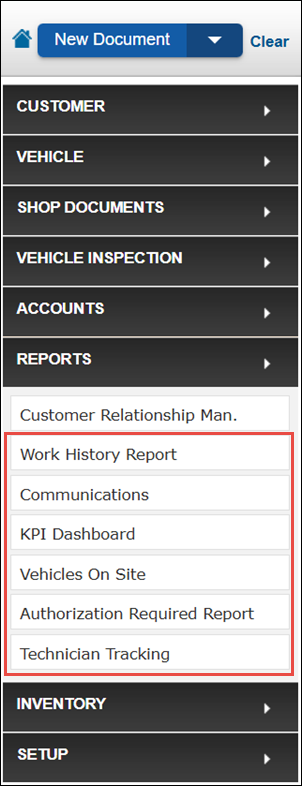
Work History Report
Local Tab: View and print previous invoices, and copy work from previous invoice to a new Work documents.
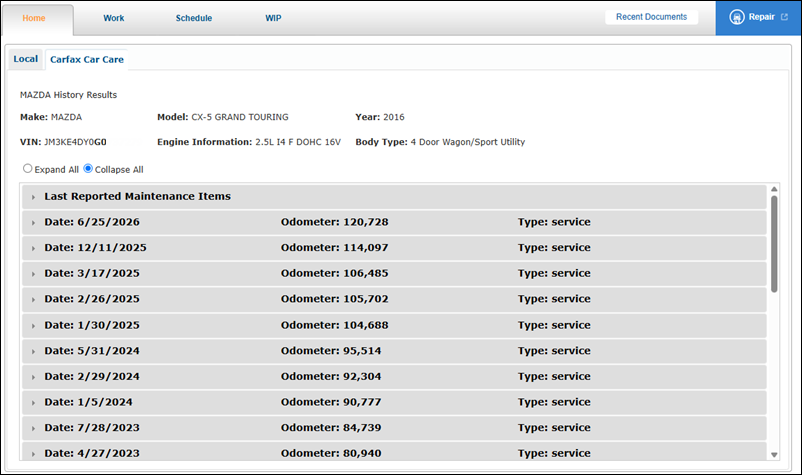
CARFAX Car Care tab: View CARFAX Car Care Service History based on VIN.
Local tab
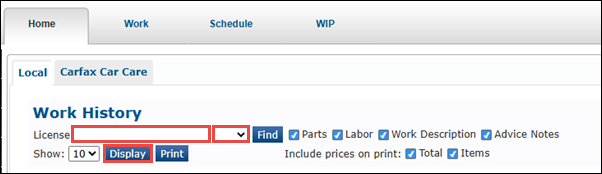
Enter a License >> select a state from the drop-down menu >> click Display.
- Note: To search all vehicles of a specific make, enter a vehicle make in the License search field >> click Find. (Example: Honda)
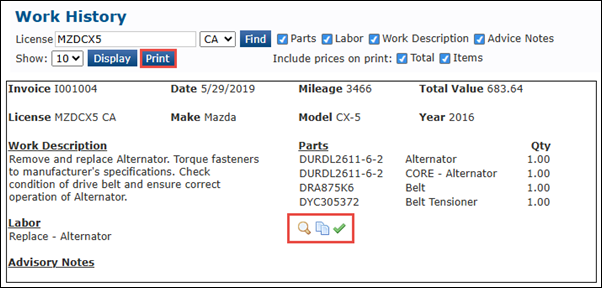
- A list of invoices will display.
- Invoices can be viewed and printed, or you can copy parts and labor to send to the current work document.
- Click Print to print the entire Work History of the vehicle.
CARFAX Car Care tab
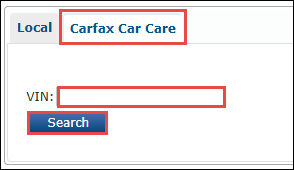
- Click CARFAX Car Care >> enter the VIN >> click Search.
- Note: If a customer has already been selected, their VIN (Vehicle Identification Number) will automatically appear in the search fields, if available.
- The CARFAX Service History will display.
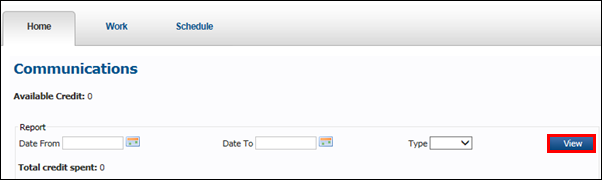
Communications
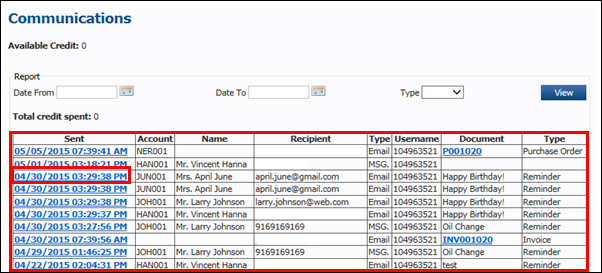
View all messages sent to customers through the Customer Relationship Manager. The reports displays the user, recipient, date, time, and type of message sent.
- To better filter results, enter as much information as available >> click View.
- On the list of messages, click the blue date and time in the Sent column to display the message that was sent.
KPI Dashboard
Use these reports to manage your shop more effectively.
Learn more about the available reports and how to set up the Key Performance Indicators on the KPI Dashboard article.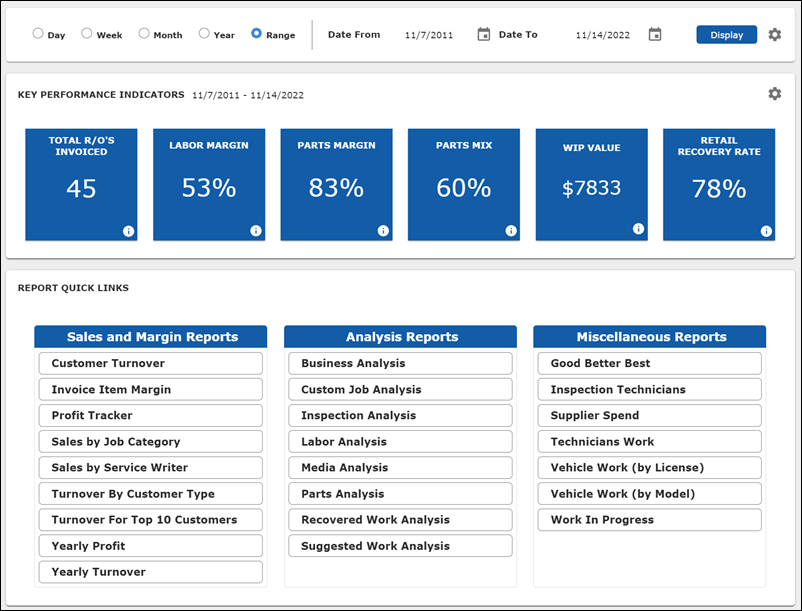
Vehicles On Site
View list of vehicles and their Key Tags that are marked On Site.
- Click the Key Tag icon to view the key tag number for each vehicle.
- See Code Settings - Key Tag to learn more.
- Click the red On Site button to mark the vehicle Off Site.
- Click Print to view and print a list of all vehicles on site.

Authorization Required Report
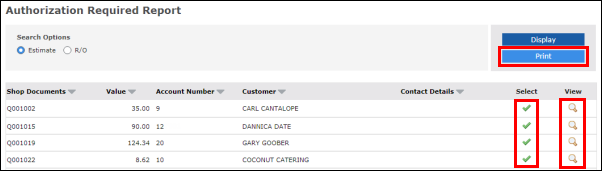
View all work documents that require authorization from the owner to proceed with the work on the vehicle.
- Select Estimate or R/O >> click Display.

- Results are displayed.
- Estimates or R/O's can be selected, viewed and printed.
- Click Print to print the entire list.
Technician Tracking
View all Technicians' Sold Hours, Actual Hours, and Efficiency percentage by Complete or Open R/Os.
To view the report
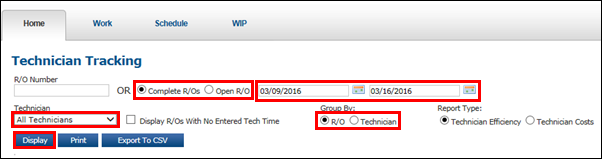
- Select Complete or Open R/Os >> select a date range >> select the Technician to view >> select to group jobs by R/O or Technician >> select Technician Efficiency (Time Tracking) or Technician Costs >> click Display.
- Notes:
- Type a document number in the R/O field to search for a specific Repair Order.
- Example: J001094
- Click Display Jobs With No Entered Tech Time to view jobs with no tracked technician time.
- Type a document number in the R/O field to search for a specific Repair Order.
- Notes:
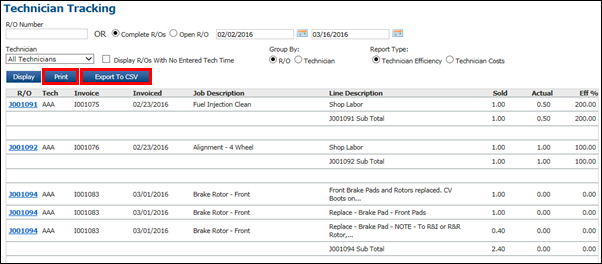
- Results are displayed.
- Click Print to print the report.
- Click Export to CSV to save a copy of the report that can be read using Excel.
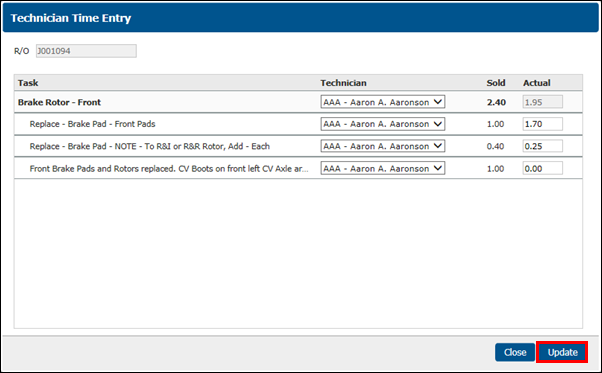
To edit Technicians' Time
- Click the Document number for the labor line(s) you want to edit.
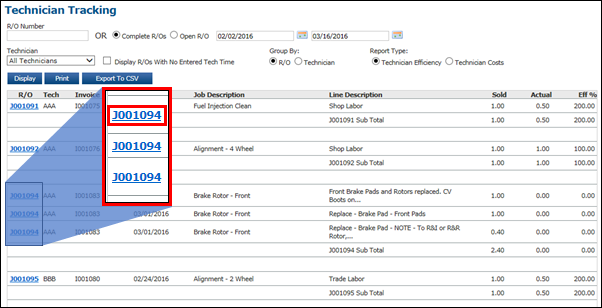
- Make the necessary edits >> click Update.
- Note: To learn how to restrict who can edit Technician's time after the Repair Order is complete, see Code Settings - Technicians.