

QuickBooks Integration
NOTE - Some features and functions in this article are only accessible at certain Shop Manager subscription levels.
| Feature / Function | Shop Manager Pro | Shop Manager | Estimator |
|---|---|---|---|
QuickBooks Integration
|  |  | |
Streamline your accounting workflow by exporting invoices, payments, and refunds directly to QuickBooks Online.
Setup
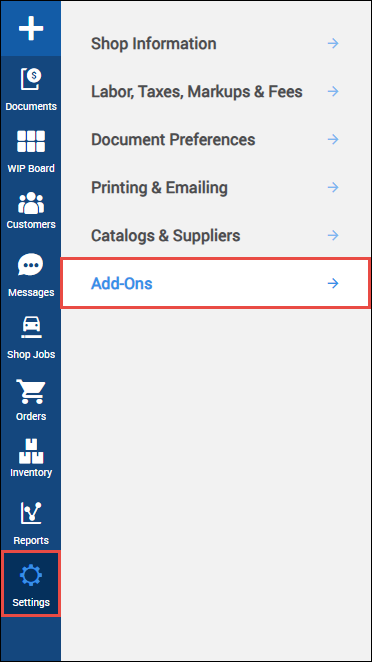
- Go to Settings >> Add-Ons
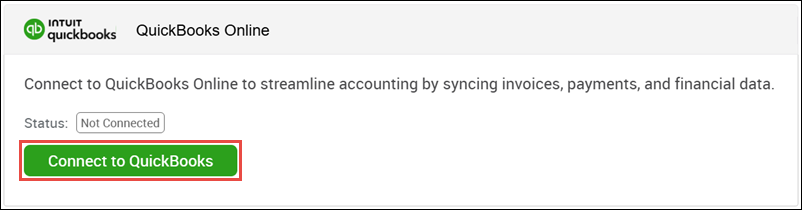
- In the QuickBooks Online section, click Connect to QuickBooks.
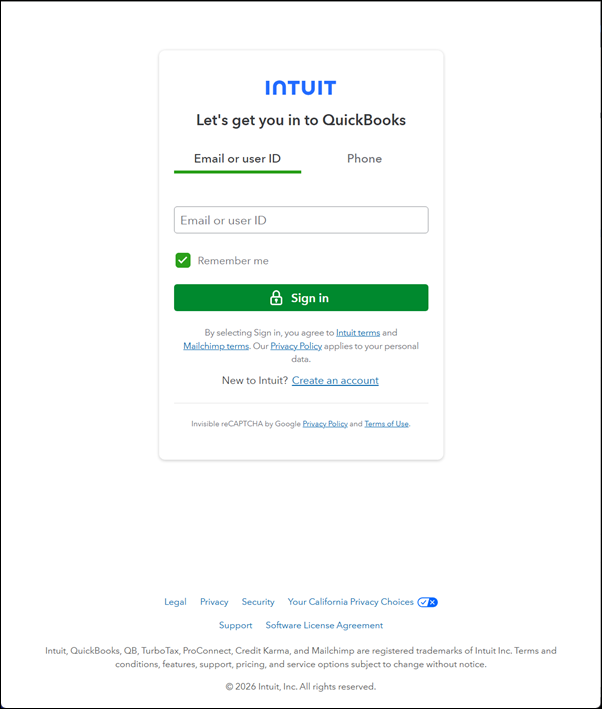
- Sign in with your existing QuickBooks user credentials.
Once connected, you will need to assign line item types to the appropriate QuickBooks product or service.
- If you are unable to locate a corresponding item in a dropdown menu, you will need to create it your QuickBooks account prior to mapping.
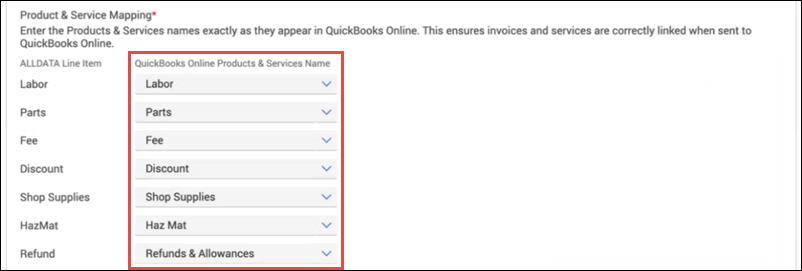
- Choose to automatically send your data to QuickBooks after each transaction, or manually export your data.
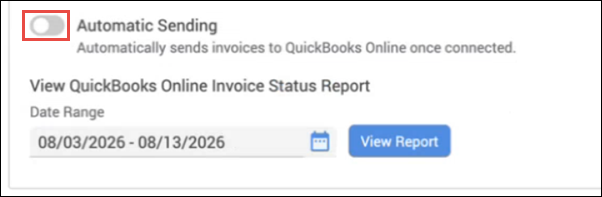
Manually Export Data to QuickBooks
When the Automatic Sending option is disabled, you can manually export your data.
- Go to Settings >> Add-Ons
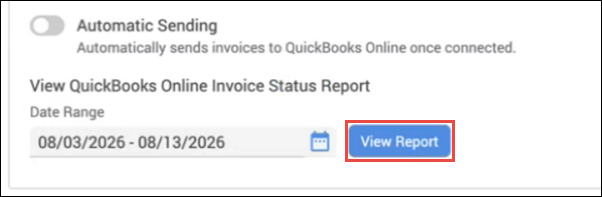
- In the QuickBooks Online section, click View Report.
- Check the boxes under the Send column for any items you want to transfer then click Send to QuickBooks.
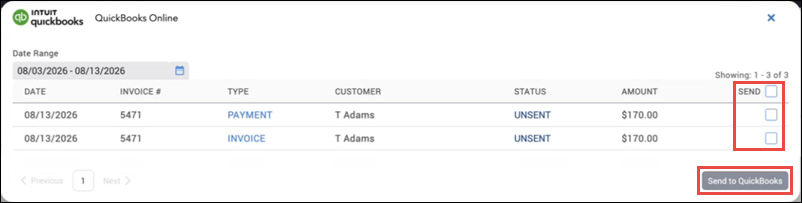
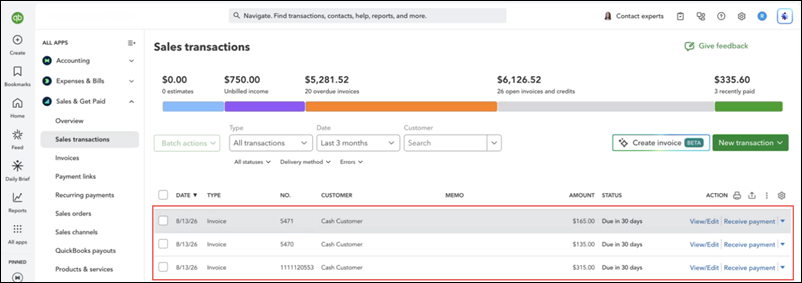
- Once processed, the items will appear in your Sales transactions in QuickBooks.